Track your stash: buy, from stash, buy more
How each swatch setting counts toward the shopping list.
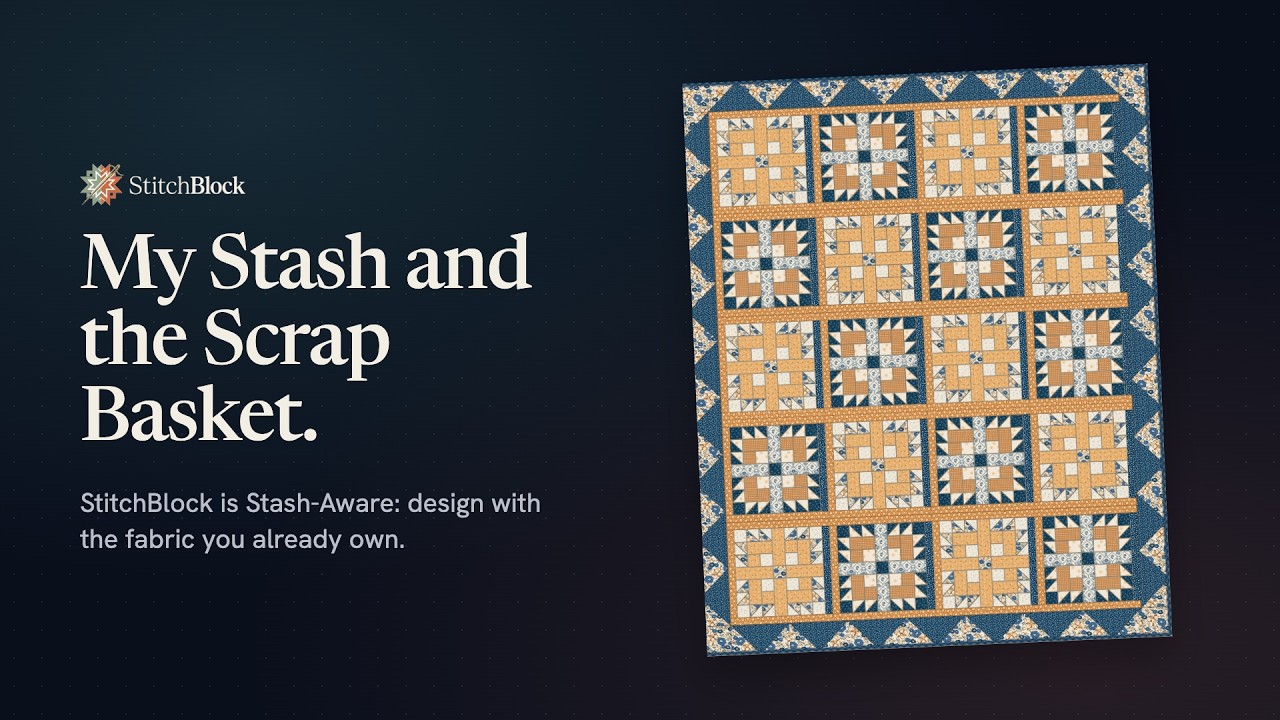
StitchBlock My Stash and the Scrap Basket: Stash-Aware quilt design with the fabric you own Watch on YouTube, bigger and with chapters
My Stash is where you record the fabric you own. A quilt can then leave it off the shopping list and tell you what is still needed.
In the Studio, open your account menu (the circle in the top right) and choose My Stash. On your phone it is the My Stash tab.
My Stash has four tabs, each with its own total: Fabric Stash (your fabrics and precut packs), Scrap Basket, Notions (your thread and batting), and Wish List. The app remembers which tab you left open. When you are signed in, My Stash, your Wish List and My Shopping List follow your account, in the Studio and on your phone. Packs, scraps, thread, batting and stash to-dos sync for Makers.
Put fabric in My Stash
From the Fabric Library: open a fabric and tap Add to My Stash, or open a collection and tap Add collection to My Stash. On your phone the button reads I own this · add to My Stash.
A fabric of your own: photograph it, and the last step asks Where does it go? Choose My Stash if you have it, the Wish List if you want it, or both if you have some and want more. In the Studio you can type it in instead, with + Add fabric & precuts at the top of My Stash. It asks the same question, with a third choice: Scraps. Its Bolt width is shared by every record you save together, like the manufacturer and collection.
A precut pack: the steps are in Your stash and precuts.
What a card shows
The Fabric Stash tab is a page of cards, the same in the Studio and on your phone. A collection has one card, with a chip for each thing you have of it: a pack, Yardage, Fat quarters, Scraps. A fabric you have on its own gets its own card. Tap a chip to see its numbers. A green check or a ! under them says whether the amounts are recorded.
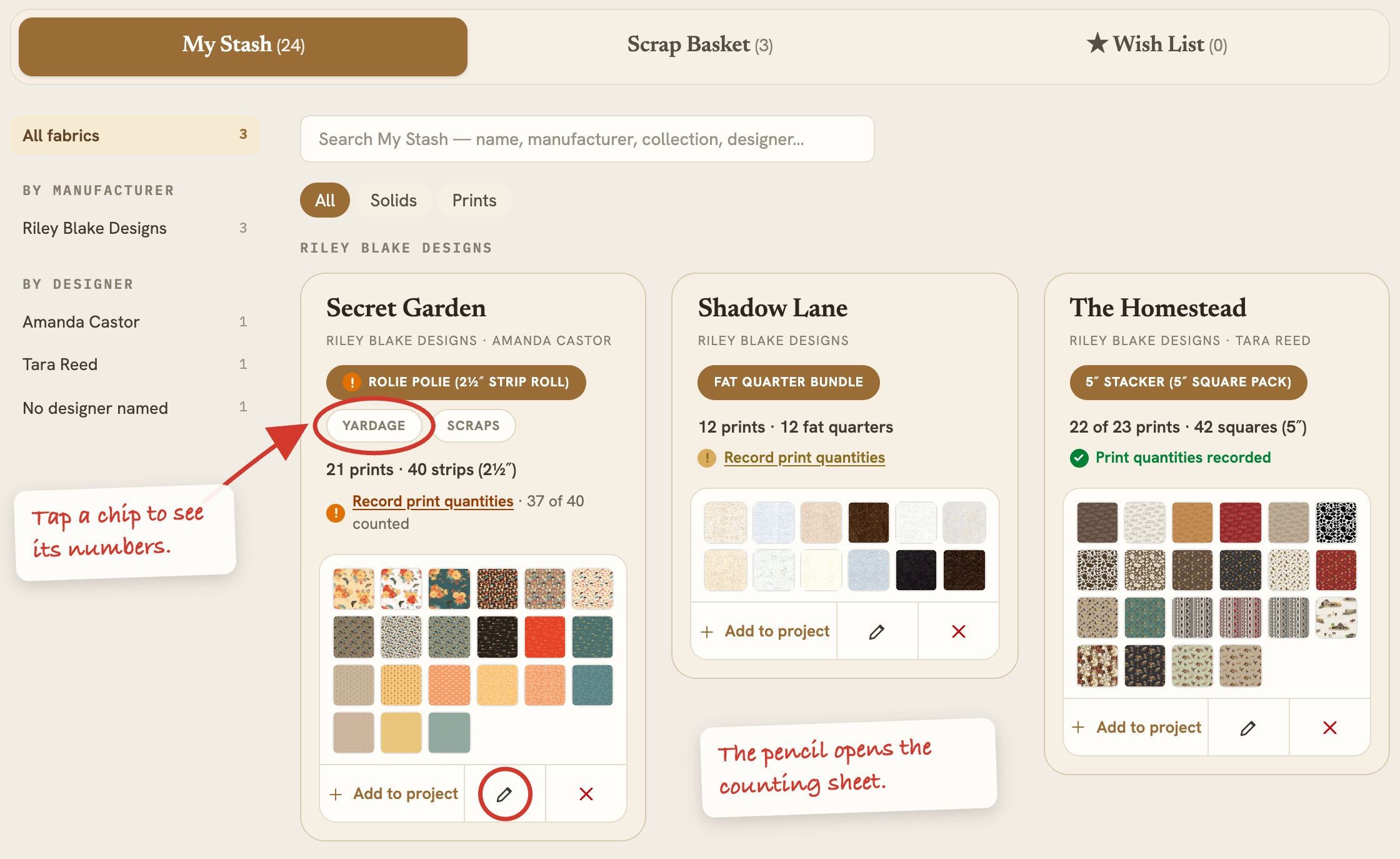
Each card has three buttons under its swatches:
Add to project puts prints into your project’s fabrics. In the Studio it also puts a pack into your project’s precuts.
The pencil opens the counting sheet for the chip you picked, where you enter how much you have. Fat quarters and fat eighths are counted there, beside the yards.
The red × takes what the picked chip holds out of My Stash.
Buy, Use my stash, Buy more
Each fabric in a block has a Source menu, on the block’s Cutting list in the Block Editor. It has three choices:
Buy: the fabric goes on the shopping list.
Use my stash: it is kept off the shopping list and listed separately, as from your stash.
Buy more: you own some but need more, so it goes on the shopping list.
A fabric you own starts at Use my stash. A fabric you do not own starts at Buy. These choices only sort the lists. The app never takes anything out of your stash on its own, and your stash quantities change only when you confirm after cutting.
Where the split shows
A block’s Cutting list in the Block Editor has a checkbox: Separate “to buy” from “my stash”. Tick it and the list splits in two. When everything’s covered, it says so: nothing to buy, it’s all coming from your stash.
The Supply List shows it another way. Beside each fabric you own, it says what your stash can cover. With an amount recorded in My Stash, it takes the amount off and shows what’s still needed. With no amount, it says “amount not recorded”.
A print whose fat quarter comes from a bundle you added to the project says “1 fat quarter from your bundle used · this is the extra fabric needed”. The bundle’s row already counted the fat quarter. A print the bundle could not cut anything from, because every piece is too big for a fat quarter, says “1 fat quarter on record” instead. Nothing on the Supply List changes your stash.
Where the yardage numbers come from
Every fabric’s amount starts from the pieces the pattern cuts. The app lays them into strips across the width of the fabric, the way the cutting pages tell you to cut them. It adds about 10% for cutting: the squaring cut, the strip that gets nicked, the piece you cut twice. Then it rounds up once for each fabric to your ¼ or ⅛ yard buying step, which you choose in Binder Settings.
A fabric cut mostly into small pieces is also checked by its total area, with an allowance for waste, and the larger amount is used. So an amount is never less than the cutting uses.
A program that leaves out the cutting allowance shows a little less for the same quilt. The extra is on purpose, so you do not run short in the middle of a quilt.
Thread, on the Notions tab
The Notions tab is where you keep the thread and batting you have. It is a Maker feature. Tap + Add thread and pick the brand, or type one the app does not list. Each spool size the brand is sold in has its own tab. Tap a color for one more spool; the small − on a color takes one back. Search finds a color by its name or its number.
Each brand gets one card, with a chip for each spool size you have and a swatch for each color. List view lists your colors by name. Tap a swatch to see what you have of that color, say how much is left (New, Almost new, Half, Less than half or Out), write a note, see which of your quilts use it, or add it to My Shopping List. A color you marked Less than half wears a ! on its swatch. Saying Out sets that color’s spools to 0; the color stays on the card.
When a quilt names a spool you have, its Supply List and the Batting & Thread card say In My Stash beside it. Nothing is taken off your thread for you.
The app keeps a rough estimate of how much of a spool your designs have called for since you last said New or Almost new. You see it in one place, on the color itself: Rough estimate: about 100 yd / 90 m used in your designs, then about how much of what you have that is. It is a guess, and it cannot see sewing you do outside the app. A quilt you finished cutting stays counted, even if you delete it later. When the estimate reaches half of a small spool, or three quarters of a larger one, the swatch wears a honey ! and the card says how many colors to check. SmartBlock Review lists a spool the quilt uses that might be running low. When a quilt’s cutting is finished on your phone, a to-do asks how much is left of each spool it used.
Batting, on the Notions tab
Batting is on the Notions tab too. Tap + Add batting, pick the batting from the list or type its name, then add what you have: bags by size, yardage off the roll with the roll’s width, and scraps with their width and length.
Each batting gets one card, with a chip for Bag, Yardage and Scraps, only the ones you have. The card draws every piece to scale with its size. The pencil changes what you have. The × removes the chip that is selected.
When a quilt names a batting you have, and one piece of it covers the quilt, its Supply List says In My Stash beside the batting row. One piece has to cover the quilt by itself; pieces are never added together. The batting’s card in My Stash says when a piece is too small for the quilt you have open. In the Batting dropdown, a batting you have reads In My Stash.
Nothing is taken off your batting for you. When a quilt’s cutting is finished on your phone and a piece of its batting in My Stash covers it, a to-do asks what is left once the quilt is quilted: Update leftovers, Mark all used, or Snooze.
A note on a card
Every card can carry one note: where the fabric is, where you bought it, anything worth remembering. Tap the card’s pencil and type it in the Note box at the bottom of the sheet. Its first line then shows on the card. A scrap card has one note for the whole card. A thread’s note is on the color: tap its swatch.
Finding things in My Stash
In the Studio, My Stash has a rail on the left. All fabrics is the whole tab, with a shelf for each manufacturer. Under it, By manufacturer and By designer list who has something on the tab, each with a count. Tap one and the page shows only that shelf. Fabric with no manufacturer sits under No manufacturer named until you name one. Above the cards, All, Solids and Prints filter the My Stash tab.
Every tab has a search box, on the phone too. Type a name, a manufacturer, a collection or a designer. In the Studio a search looks inside the shelf you picked. A line over the cards says where it looked: “0 results in Andover Fabrics”, with Search all of My Stash beside it.
My Stash on your phone
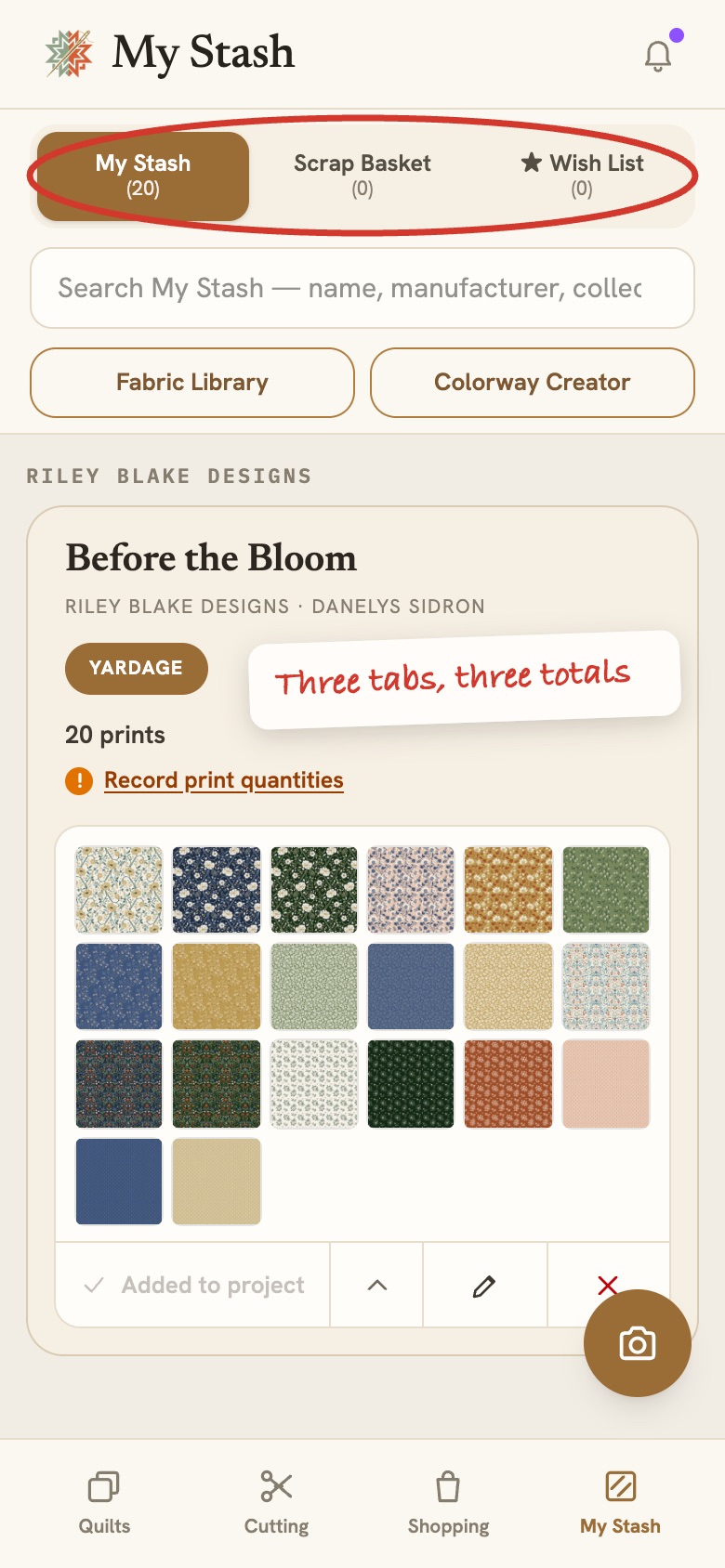
On the My Stash tab, tap Fabric Library and open a collection.
The bar at the top says I own…, with three choices. The whole collection. Some of these: tap the prints, then Mark N owned. Precuts, for Makers: tap the pack you have, and it is recorded in My Stash with its piece count and prints filled in.
With Maker, each one ends on two buttons: Enter quantity, or Do it later. A free account ends on Done, because marking what you own is free and amounts are Maker.
Do it later marks it owned with no amount. Enter the amount any time with the pencil on its card.
You can’t design with precuts on your phone. They show on your My Stash cards, and you can count them there. Searching the Fabric Library finds fabrics and collections, not packs, and painting from a pack happens in the Studio. See Bring a precut pack into your project.
My Shopping List
Buying has a list of its own. In the Studio, open it from your account menu, right below My Stash. On your phone it is the Shopping tab. It starts empty, and only you add to it.
On the Supply List tab, everything you can buy has a checkbox: fabrics, backing, batting, thread. Check it and the line goes on My Shopping List under its project’s name, with the amount to buy. Uncheck it to take it off.
A wish comes over from the Wish List when you choose Add to shopping list on it. It is listed under From your Wish List.
Tap a project’s name, or From your Wish List, to fold it shut or open it again. Each device remembers what you folded. Fabric that is coming soon can be wished for too. See Wish List and fabric news.
Tick “use my stash” on a project fabric and the line shows what’s still needed after what you have, the same amount the Supply List shows.
Checking a line off means bought. That’s the one place shopping can change your stash quantities, and it always asks first: “Add ¾ yd to your stash quantities?” Confirm and every list updates. Decline and nothing changes anywhere.