Your stash and precuts: counts, packs, and leftovers
Count how much of each fabric you have, record your precut packs, and update your stash quantities on cutting day, only when you say so.
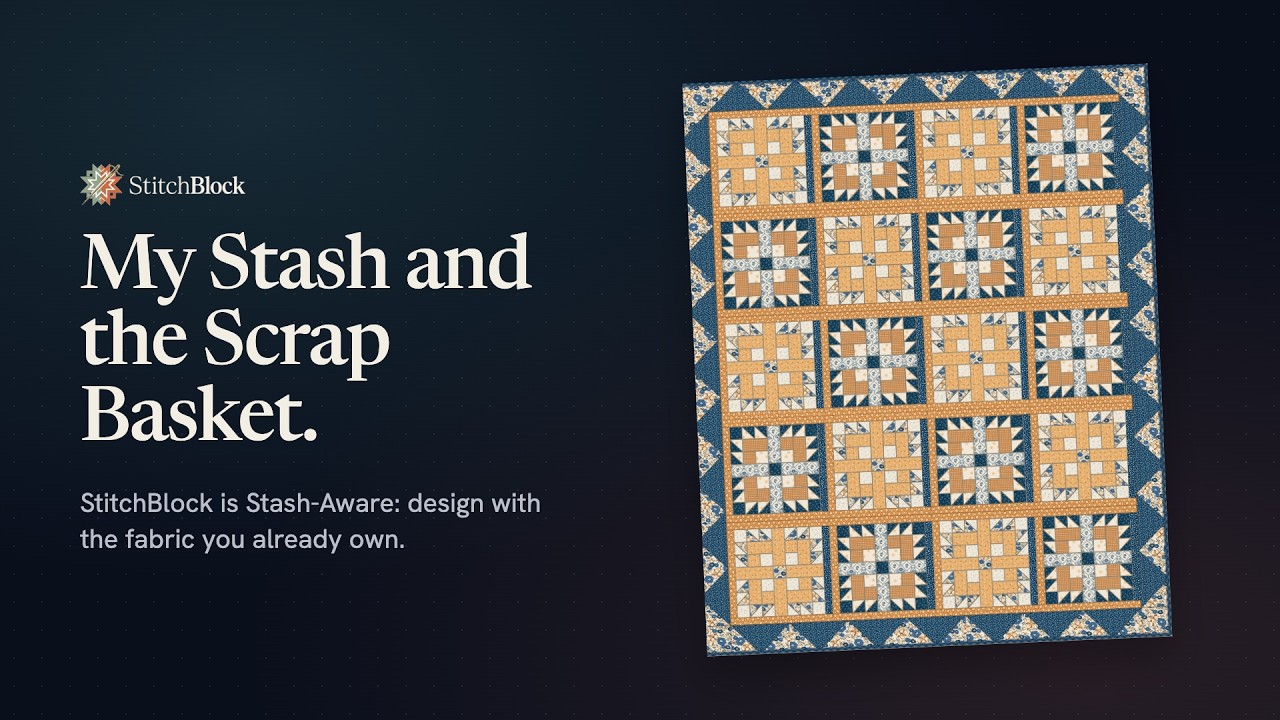
StitchBlock My Stash and the Scrap Basket: Stash-Aware quilt design with the fabric you own Watch on YouTube, bigger and with chapters
To say you own a fabric, tap Add to My Stash. That is all the app needs. Everything on this page is extra, for when you want the app to know how much you have.
How much do you have?
Every card in My Stash has a pencil. It opens the counting sheet, the same in the Studio and on your phone.
On the card, tap the chip you want to count, such as Yardage. Then tap the pencil.
The sheet shows every print with its number. Tap a number. Tap − or +, or type the amount, then tap Save. Yardage goes up ⅛ yard at a time.
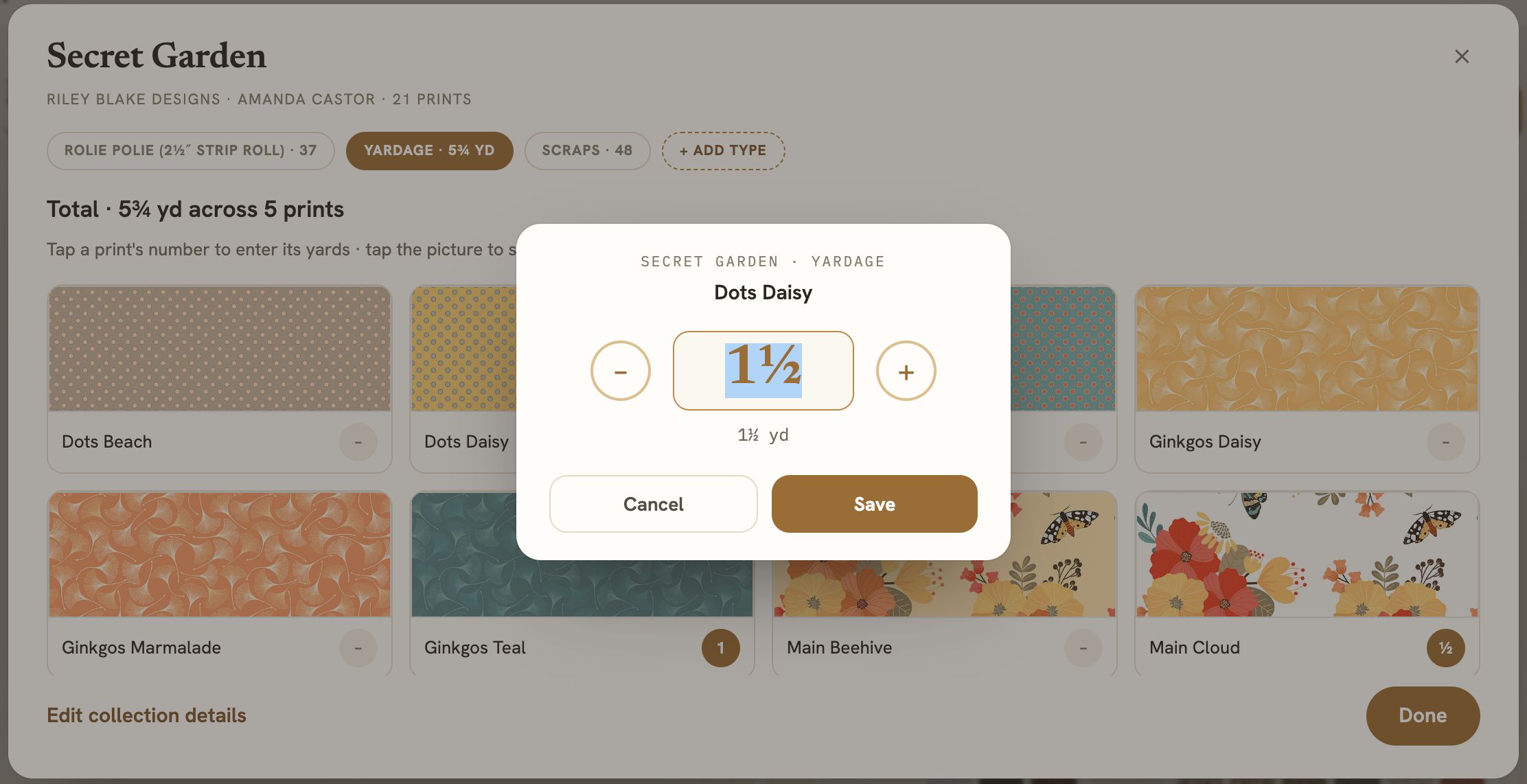
To count something else, tap + Add type. Fat quarters and Fat eighths are always on the list, counted print by print beside the yards. A print can have yardage and fat quarters at once, each on its own tab.
Tap Done.
On your phone you can also tap a fabric’s swatch, then tap Enter quantity under How much do you have? Choose Yardage, Precut pieces or Scraps. Fat quarters and fat eighths are under Yardage, beside the yards.
When you photograph a fabric, the crop step asks how many you have, right after it asks what it is. See Add your own fabric.
Scraps of a fabric you have as yardage: on your phone, open the fabric and tick “I also have scraps of this”. In the Studio, add them on the Scrap Basket tab. See Your Scrap Basket.
A pack is one chip on its collection’s card
A 2½″ strip roll (such as a jelly roll), a square pack or a fat quarter bundle is one chip on its collection’s card, not a card for every print.
From our library, in the Studio: open the collection in the Fabric Library. Under Ships as, tap the pack, then tap Add to My Stash. The pack, its piece count and its prints come from our library, so you type nothing.
From our library, on your phone: open the collection in the Fabric Library, tap Precuts on the I own… bar, and tap the pack you have.
A pack we do not list, in the Studio: tap + Add fabric & precuts at the top of My Stash. Type the manufacturer and the collection, and give each print a row. Choose the pack as the row’s cut. The list names it by size, such as 2½″ strip roll or 5″ square pack. Then tap + for each piece of that print. The pack’s total is what you counted. A guild swap bundle counts the same.
A collection that already has a card: tap its pencil, tap + Add type, and choose the pack.
Count the prints in a pack
Tap the pack’s chip, then the pencil, and count each print the same way. A print at zero is not in your pack. That is how you record a bundle that has only some of the collection’s prints.
For a roll or a square pack, the top line counts what you have placed against the pack’s total: 16 of 19 pieces counted · 3 to place. The total is your number. Counting prints never lowers it, and you change it in the pieces in the pack box. A fat quarter or fat eighth bundle has no box: its total is the prints you counted, up or down.
The packs you record also help in the Designs library. A “From my stash” chip above the shelves shows only the designs your packs can make. Those are starter designs with a precut recipe, such as the Log Cabin Throw and the Jelly Roll Race Throw, which a 2½″ strip roll of 40 strips makes. The chip goes by the kind of pack and its piece count, not the collection, and part packs of the same kind add together.
Add one to your project, and Use my … in the Fabrics panel deals your roll’s prints into it: lights where the lights are, darks where the darks are.
The green check and the !
Every card in My Stash has a line under its numbers that tells you whether the app knows how much of each print you have. It reads the same on your phone and in the Studio, for packs, yardage, fat quarters and scraps.
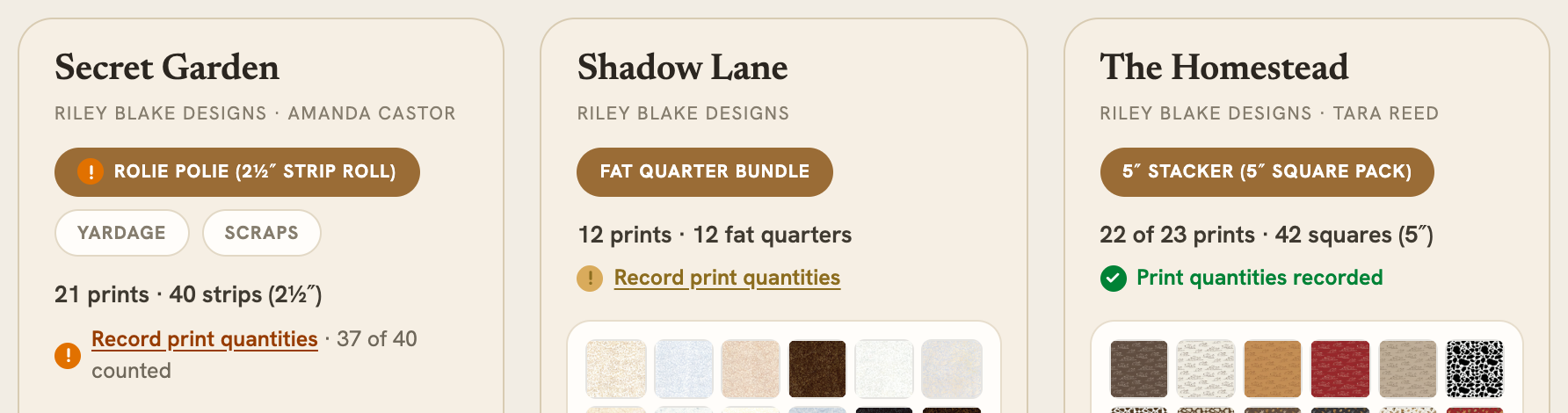
A green check with Print quantities recorded means you entered them. The app plans with your numbers.
A honey ! with Record print quantities is on a pack whose print quantities you have not recorded yet. Until you do, the app goes by the pack: one of each print in a fat quarter bundle, or the pieces split evenly across the prints in a roll, charm pack or layer cake. Those numbers are often right.
Tap Record print quantities and look over the numbers on the sheet. If the print quantities below are correct for your bundle or pack, tap Save. If a print is different, tap its number and change it. Either way the line turns green.
An amber ! means there is nothing to go by yet: a print with no amount entered, a pack with pieces not counted yet (37 of 40 counted), or scraps that are not counted (Count the scraps). Tap the words to open the sheet and fill in what is missing.
When a card has more than one chip, such as a fat quarter bundle and yardage, each chip that still needs counting carries its own !, so you can see it without tapping every chip.
Fat quarters count the same however you recorded them: in a fat quarter bundle, from a manufacturer or the one your quilt shop put together, or one by one on each print. Bought an extra fat quarter of a print you love? Count it on the bundle or record it on the print. The Supply List takes all of them off what your quilt needs and tells you what is still needed.
Precuts on your phone
You can record a pack and count its prints on your phone, but you can’t design with it there. Searching the phone’s Fabric Library finds fabrics and collections, not packs, and My Stash has no Add to project for a pack. To paint from a pack, add it to your quilt in the Studio. Fat quarters or yardage you record print by print are different: those prints come up in Try a fabric like any other fabric. See StitchBlock on your phone.
In the Studio, Add to project on the pack’s card puts the pack into your project’s precuts.
Designing never changes your stash
When a design uses a fabric that has a card of its own in My Stash, the card notes it: 7 strips (2½″) earmarked for “Autumn Race”. It is only a note. Delete the design, switch the fabric to Buy, or take it out of My Stash, and the note goes away.
A pack with its print quantities recorded gets a note for each print. When your designs use more of a print than the pack has, the pack’s card in the Studio says so. It reads “Designs ask for 2 strips (2½″) of Bella Snow”, then how many are in this pack. Nothing is taken from your stash.
The W.I.P. tab tracks as you sew
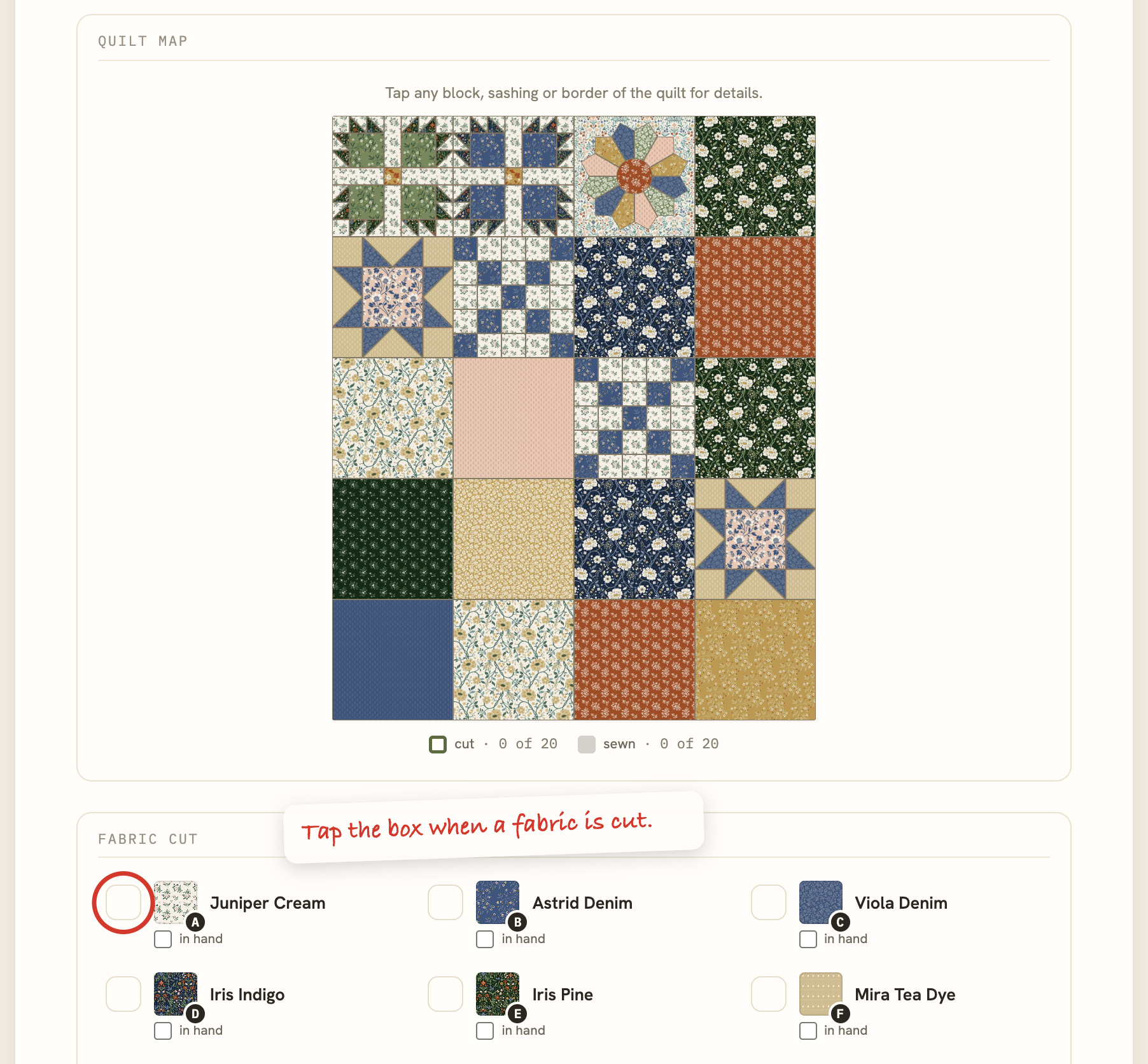
The Binder’s W.I.P. tab gives every fabric a checkbox. Check it off when you’re done cutting it. Its quilt map marks each block cut or sewn. Checking off never changes your stash.
When the quilt uses a stash fabric with a recorded amount, its row offers “update stash…”. Tap it, then tap Update. Your amount comes down by what the quilt used and you have not confirmed yet.
Once you confirm an amount, the app does not ask about it again. Every later ask, cutting day’s too, offers only what’s left.
The first time you start cutting stash fabric with recorded amounts, the app asks once: “Will you be using your stash?” Yes turns on the update stash offers. No turns them off for the whole project. Snooze puts the question on your stash to-do list. Ticking “use my stash” on a shopping-list line answers it too.
Cutting day is when stash quantities change
Check off the last cut on your phone’s Cutting tab. The app congratulates you, then shows your stash update, already filled in: what was used and what’s left.
A pack from My Stash that the quilt cut from has a line of its own: the pieces it used and how many are left. It goes print by print when the pack’s prints are counted.
Tap Confirm and the leftovers become your new amounts. Tap Edit to correct the numbers first. Tap Later to put it on your stash to-do list.
Bought a full roll for this quilt? One tap adds the leftover strips to your stash. Nothing is ever removed or added until you tap.
Used it all, or taking fabric out
Used every last strip? The amount goes to zero and the card grays to “none on hand”. The fabric stays in My Stash until you take it out yourself.
To take something out, tap the red × on its card. On a collection’s card it removes what the picked chip holds: the pack, the yardage, the fat quarters or the scraps. Taking a fabric out also clears the reminders about it.
On your phone you can also tap a swatch to open the fabric, then tap Remove from My Stash. Each line on the Scrap Basket tab has its own Remove.
When a fabric you entered is in our library
If a fabric you photographed or typed in is one the library carries, My Stash shows a card: 1 thing you entered may be in our library. Take a look puts your entry beside the library’s picture and asks if it is the same. Yes, that’s it moves what you recorded (amount, location, cost, notes, scraps and any wish) onto the library fabric. No is remembered and never asked again. Not sure leaves it for later.
It only asks when the SKU matches, or the print name and the collection both do, and it never changes a quilt. Photographing the bolt tag when you add a fabric is what makes a match certain.
A wish you wrote in by hand works the same way for a whole collection. Write the collection’s name with its manufacturer or its designer (Adventale by Art Gallery), and the card asks Is this the collection Adventale? Yes puts the collection’s picture on your wish and lets you add its packs to your shopping list. Your own words and note stay, and the bell tells you when the collection opens for design and when it reaches shops.
The to-do list remembers so you don’t have to
Anything you put off is under the To do button in My Stash, in the Studio and on your phone. Each task has its own buttons: Update leftovers, Mark all used, or Snooze. A task keeps its own copy of the numbers, so it still works after the design is gone.