Bring a precut pack into your project
Add a pack from the Fabric Library, paint with its prints, and read what the pack row, the check and the pill tell you. My Stash says which pack you already own.
StitchBlock Fabric-Fit: Precuts, Fat Quarters & Scraps Watch on YouTube, bigger and with chapters
A precut pack is fabric sold already cut, with a known number of pieces: a charm pack, a 2½″ strip roll (such as a jelly roll), a layer cake. Put one in your project and its prints are in your Fabrics panel. You paint with them like any other fabric, and the pattern lists the packs the cuts need. Adding a pack takes nothing off your shelf: what you own is kept in My Stash.
Add the pack
Open the Fabric Library, find the collection and open it. Under Ships as, tap the pack you want, such as 5″ Square Pack, 2½″ Strip Roll or 10″ Square Pack. When a size comes as more than one product, tap the one you want beside Which pack? The pack panel opens with its piece count and SKU. Tap Add to project.
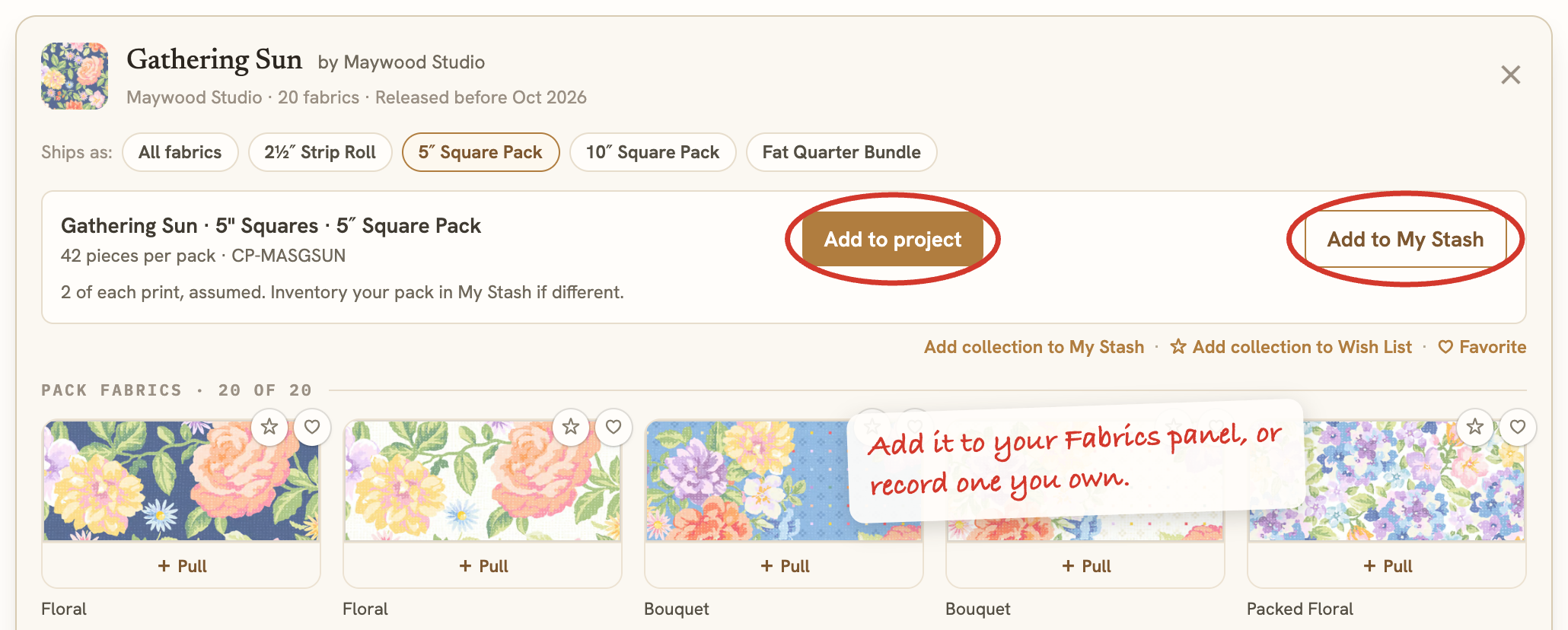
Already have this pack on the shelf? Tap Add to My Stash and the exact pack is recorded there, with its product, count and prints filled in from the library. From then on the pack row reads in stash beside the number of packs to buy. Tap use my stash on the row to count packs you already own toward this quilt before buying more.
A pack that is already in My Stash can go into the project from there: tap Add to project on its card.
Tip: These steps are for the Studio. You can’t design with precuts on your phone: the phone’s Fabric Library has no Ships as, and searching it finds fabrics and collections, not packs. See StitchBlock on your phone.
Paint from the pack
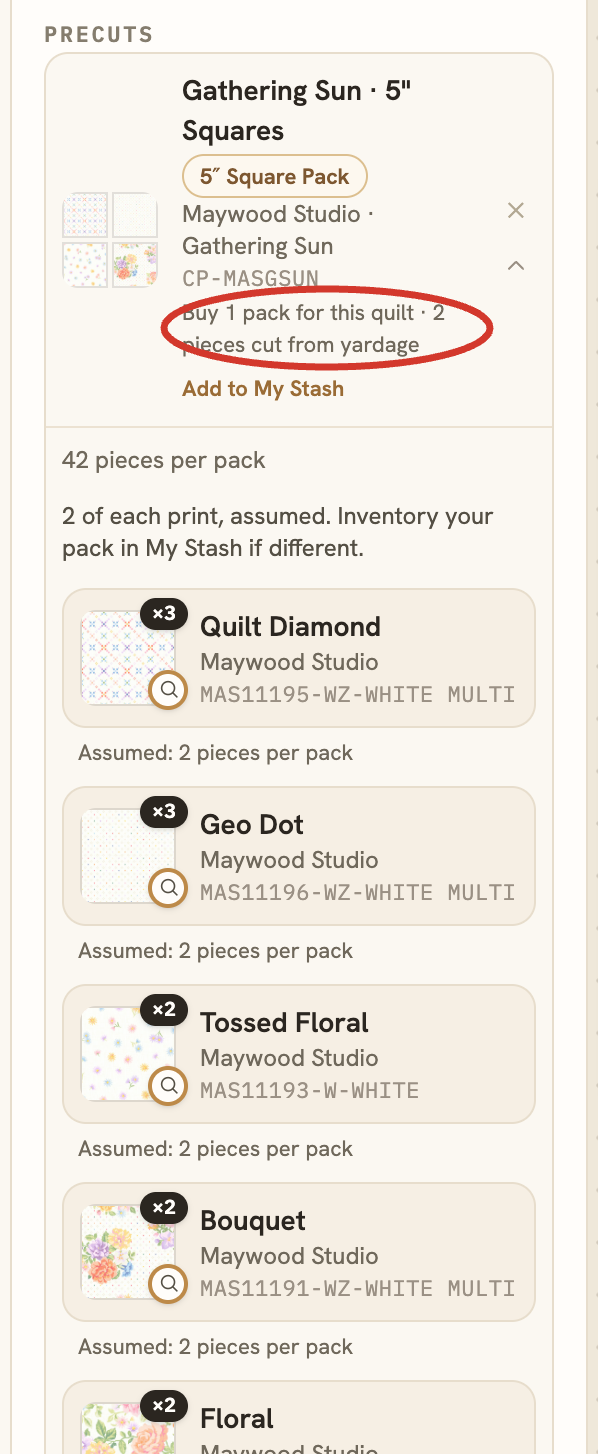
Open Fabrics on the left rail. The pack is one row in the PRECUTS section of Project Fabrics, with every print it holds as a swatch. Yardage is listed beneath it under YARDAGE, and a print you have both ways shows in both.
Tap a swatch to arm it and paint a block piece. The corner badge counts how many pieces of that print the quilt cuts from the pack, and the row’s header says how many packs to buy for this quilt. When the pack covers the piece you painted, Fabric-Fit counts the cut for you on the spot.
What the row tells you
The contents note under the pack says what the app knows about the prints inside. Pack contents recorded means every print’s quantity is known. Pack contents exact is a one-fabric pack, such as a solid’s charm pack.
When the pack lists its prints and a piece count, the row assumes an even split and says so: 2 of each print, assumed. Inventory your pack in My Stash if different. Anything less certain reads: Contents are assumed, as precuts can be random. Inventory your pack in My Stash if different.
Once a pack is using stash, the note comes from what you recorded in My Stash: a bundle you counted there says Pack contents recorded. Either way the pack’s prints, or the collection’s fabrics in their place, are in your Fabrics panel so you can paint.
To take the pack out of the project, tap the ✕ in the row’s top corner, the same as any collection. Fabrics already painted stay on the quilt, and My Stash is not changed.
Use a print more times than one pack holds and the app asks at that stroke: Your 5″ Square Pack runs out of this print here. The answers are Add yardage, Buy another pack, or Cancel. A fat quarter bundle asks only Add yardage, at the stroke its fat quarter can’t hold. The rest of that print is priced as yardage, like any pack’s remainder.
Painting a role or a segment in the Block Editor asks the same way, since that repaints every block that uses the design. The question opens by saying so and how many pieces that one tap painted. It does the same when Matching blocks or Band is on, and when Fill paints every empty block.
A change of settings that leaves a pack unable to cover a print asks the same way, once the change settles, with Put it back in place of Cancel. The count of packs never goes up on its own. That choice is yours, made on the spot or later on the pack card.
The check and the pill
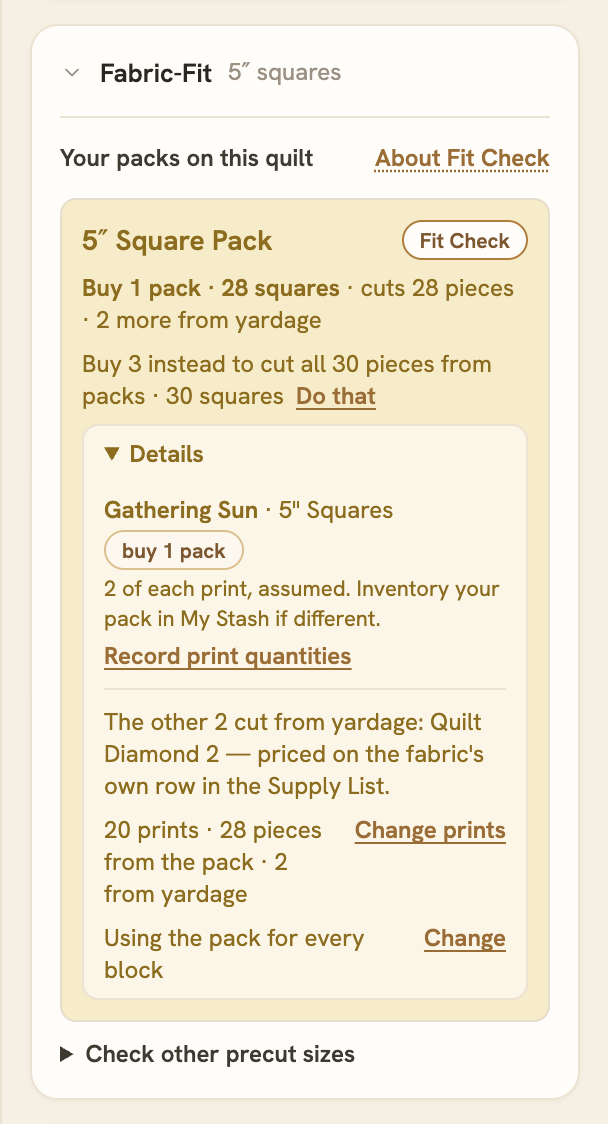
Inspector ▸ SmartBlock has Your packs on this quilt under Fabric-Fit: one card per pack size. Each card has the size with its Fit Check pill (No fit when nothing is that size). Under it is a line such as Buy 2 packs · 62 squares · cuts 118 pieces · 20 more from yardage. Details has a section for each pack, with its in stash or buy pill and its own Record print quantities. Under the packs, one line covers the prints, with Change prints beside it.
See How your precuts get used and Precuts: how the app knows what a pack holds.
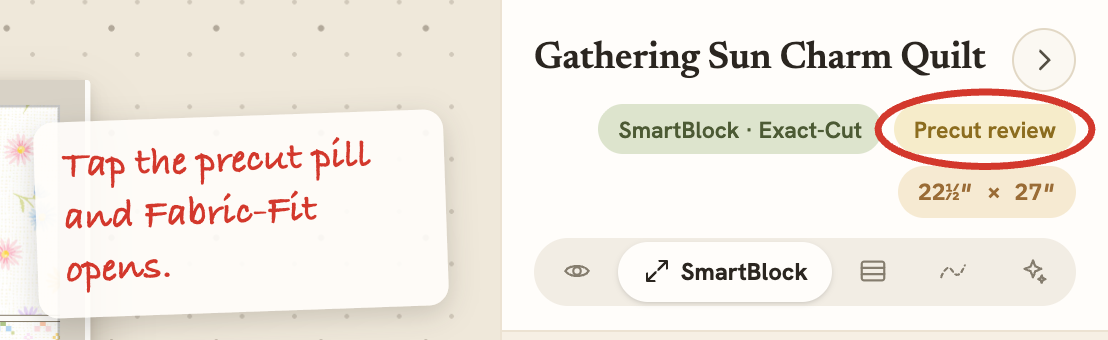
Beside the SmartBlock pill at the top of the Inspector, a second pill is for your packs. It reads Precut review in honey when a pack’s contents are unconfirmed. It reads Precut attention in amber in the rare case a pack you own runs short, or when a cut does not fit the pack at this size. Tap it and Fabric-Fit opens. The SmartBlock pill says whether your cuts are exact.
Sashing, borders, binding and backing
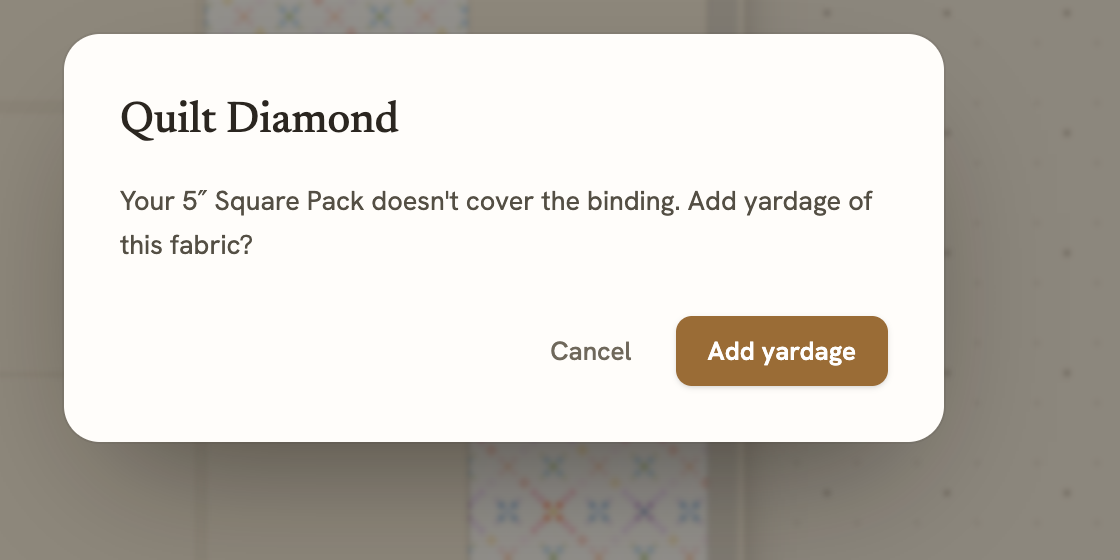
Sashing, plain borders, binding and backing are cut by the yard, so painting a pack print onto one of those asks first: Add yardage of this fabric? Add yardage puts the print in your project by the yard and the paint lands. Cancel leaves the quilt as it was. A block piece asks only when the pack runs out of that print.
A fat quarter bundle print goes onto a pieced border’s pieces and onto cornerstones with no question. Its fat quarter cuts them.
Tip: Pieces come from My Stash. Designing doesn’t use them up. To see what each pack covers on this quilt, or to buy fat quarters instead, see How your precuts get used. To count what is on your shelf, see Your stash and precuts.