StitchBlock on your phone: the Phone Companion
Your quilts, cut list, shopping list and stash on your phone, at the cutting table and the fabric store.
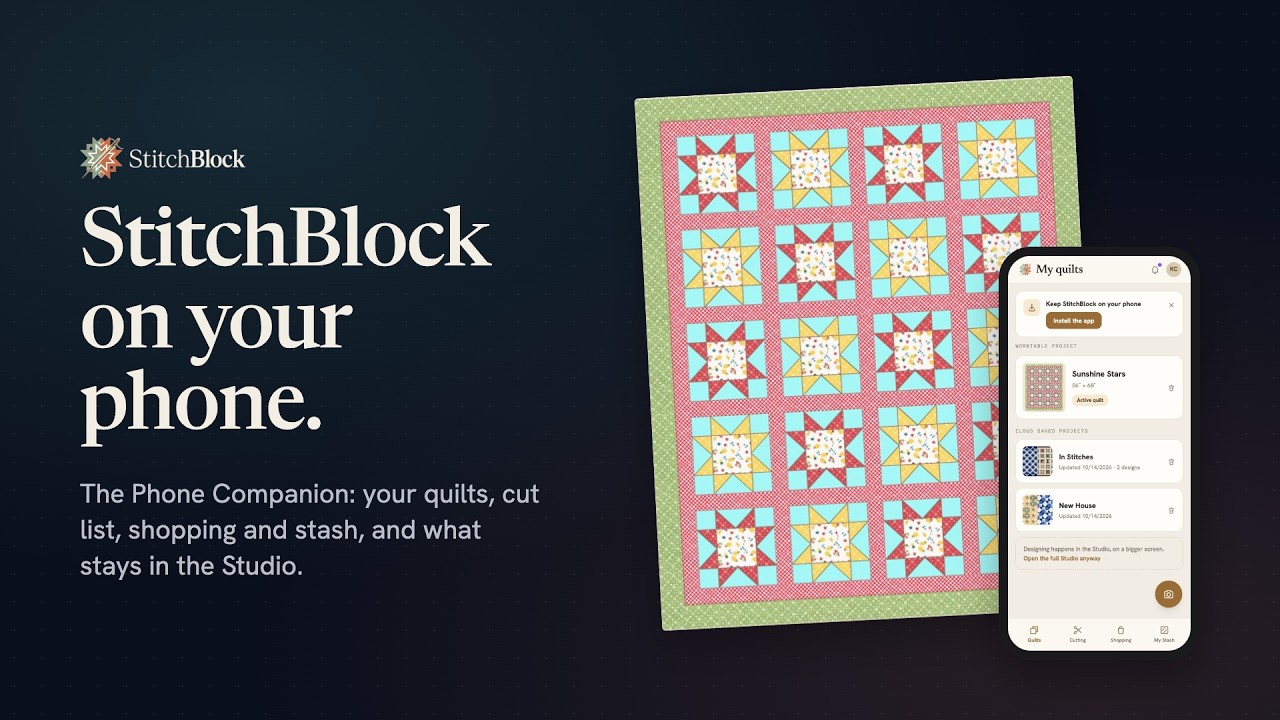
StitchBlock Phone Companion: Cutting, Shopping & Fabric Stash Watch on YouTube, bigger and with chapters
StitchBlock is web based. It runs in your browser, and it was designed to work best on computers, laptops and tablets. On a phone, the same StitchBlock opens as the Phone Companion. You design in the Studio, on the bigger screen; the Companion comes with you to the cutting table and the fabric store, and it's where you take photos of your fabric for your stash.
Putting it on your phone
There is nothing to download from an app store. In the Studio, open Settings and find Phone Companion. It has the link to open on your phone, with Copy link to text it to yourself, and Email me the link when you're signed in.
Open the link on your phone and add StitchBlock to your Home Screen. On an iPhone, tap Safari's Share button, then Add to Home Screen. On Android, open Chrome's menu and tap Install app. The icon opens StitchBlock full screen.
Sign in with the same account you use in the Studio. Your initials in the top corner mean you're signed in.
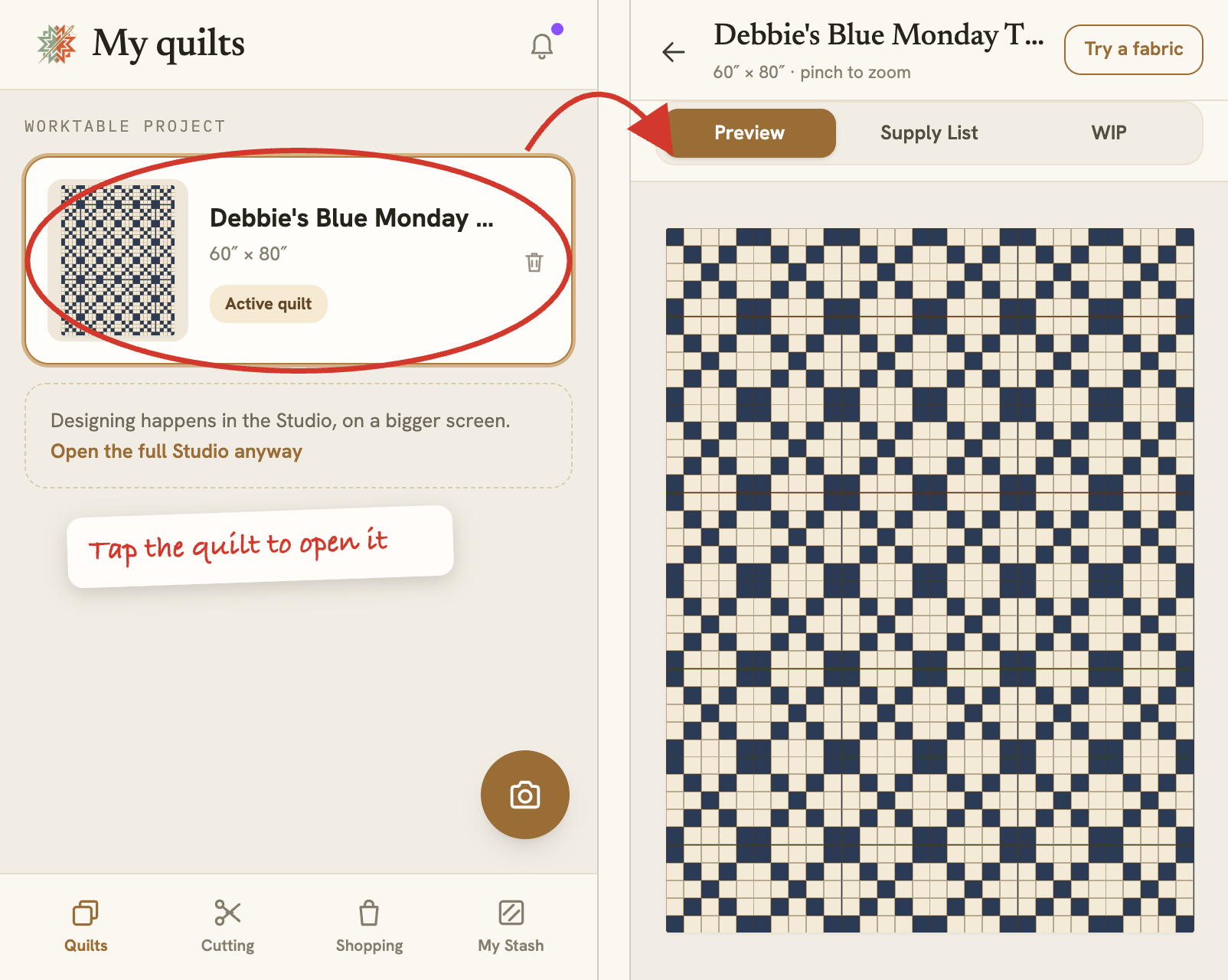
Open the quilt you're working on. The quilts saved to your account are listed under Cloud saved projects; tap one, and it opens on your phone at the top of the list, under Worktable project.
Tip: Settings → Phone layout decides what each device shows. Automatic gives a phone the Companion and anything bigger the full Studio. You can choose Companion or Studio for one device instead, and it is remembered on that device only.
The four tabs
Quilts: the quilt open on this phone, and the quilts saved to your account. Tap the quilt for its preview, its Supply List, its WIP (Work In Progress) page, where you tap a block to mark it cut or sewn, and Try a fabric (below).
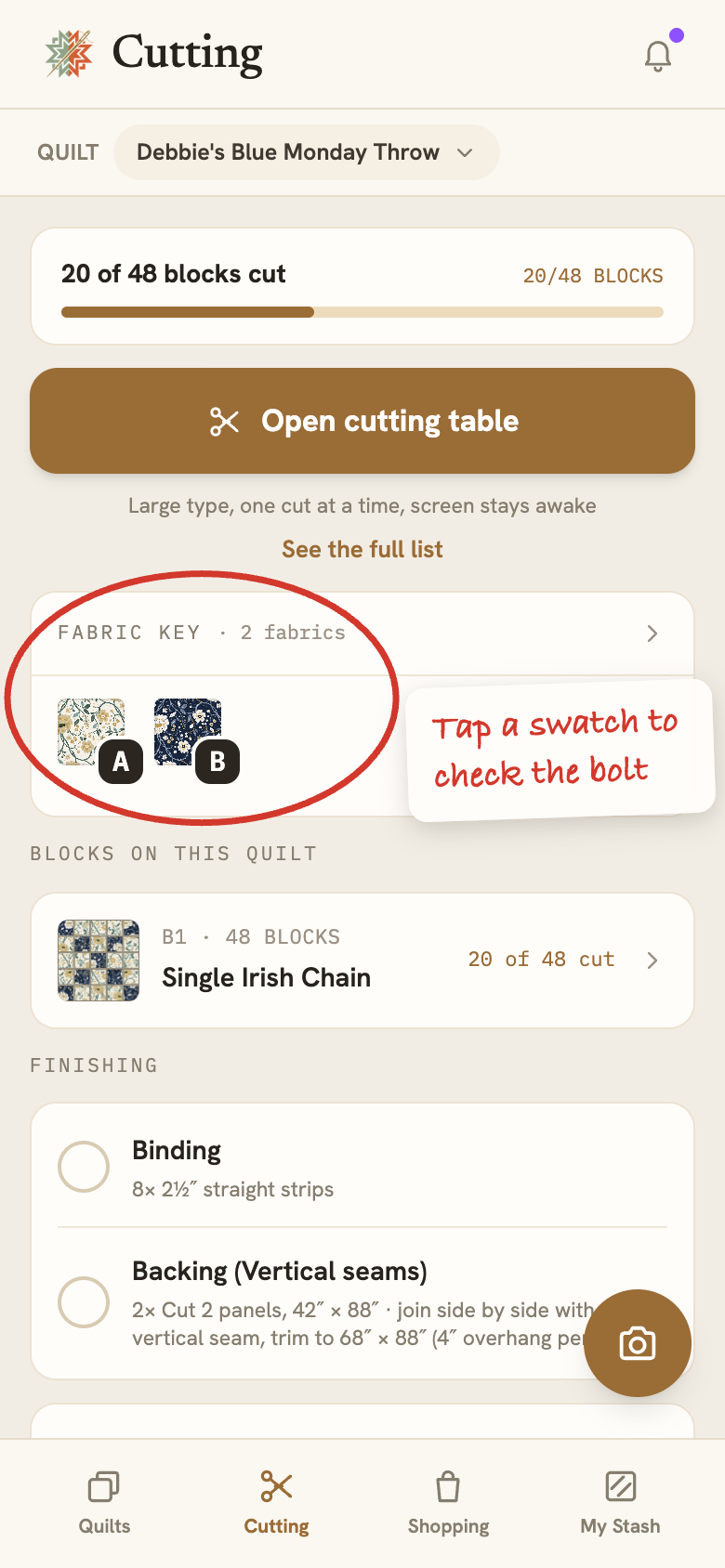
Cutting: with Maker, your cut list. When the project holds more than one quilt, the menu at the top picks the one you're cutting. The bar at the top counts the blocks you have cut. Under it, the Fabric Key lists the quilt's fabrics by letter, the same letters your printed pattern uses; tap a swatch for a big view with the fabric's name, manufacturer and SKU, to check it against the bolt. Open cutting table shows one cut at a time in large type and keeps the screen awake, and See the full list, under it, lets you check off cuts in any order. Blocks on this quilt shows how many of each block are cut; tap one to cut just that block. Setting triangles, Sashing, Borders and Finishing follow, each line ready to check off. The pattern pack is the printable pattern as a PDF to view and share; print templates from a computer, so they come out at full size. Every number comes from the Studio's cut math.
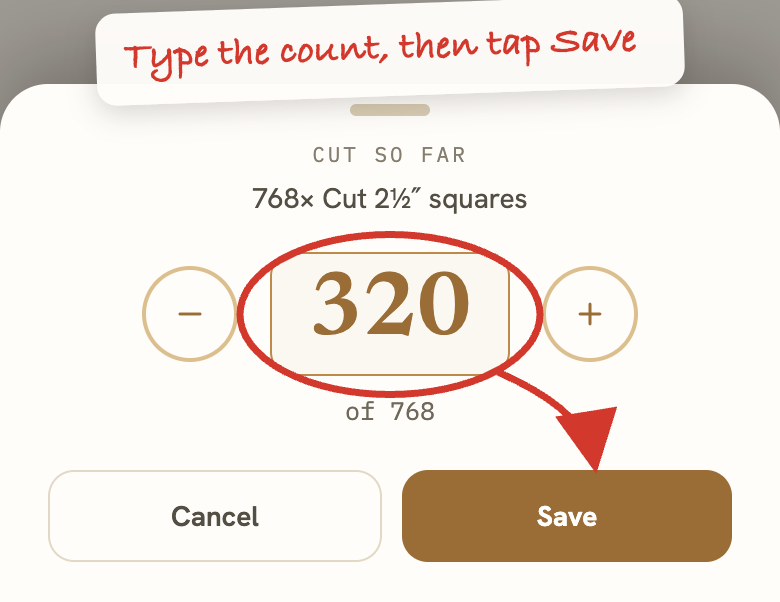
You don't have to cut a whole line in one sitting. On the cutting table, tap the count under the cut, type how many you have cut, and tap Save; the table tells you how many are left. All cut · next marks the line done and moves on. The WIP page counts the same cut blocks, on your phone and in the Studio.
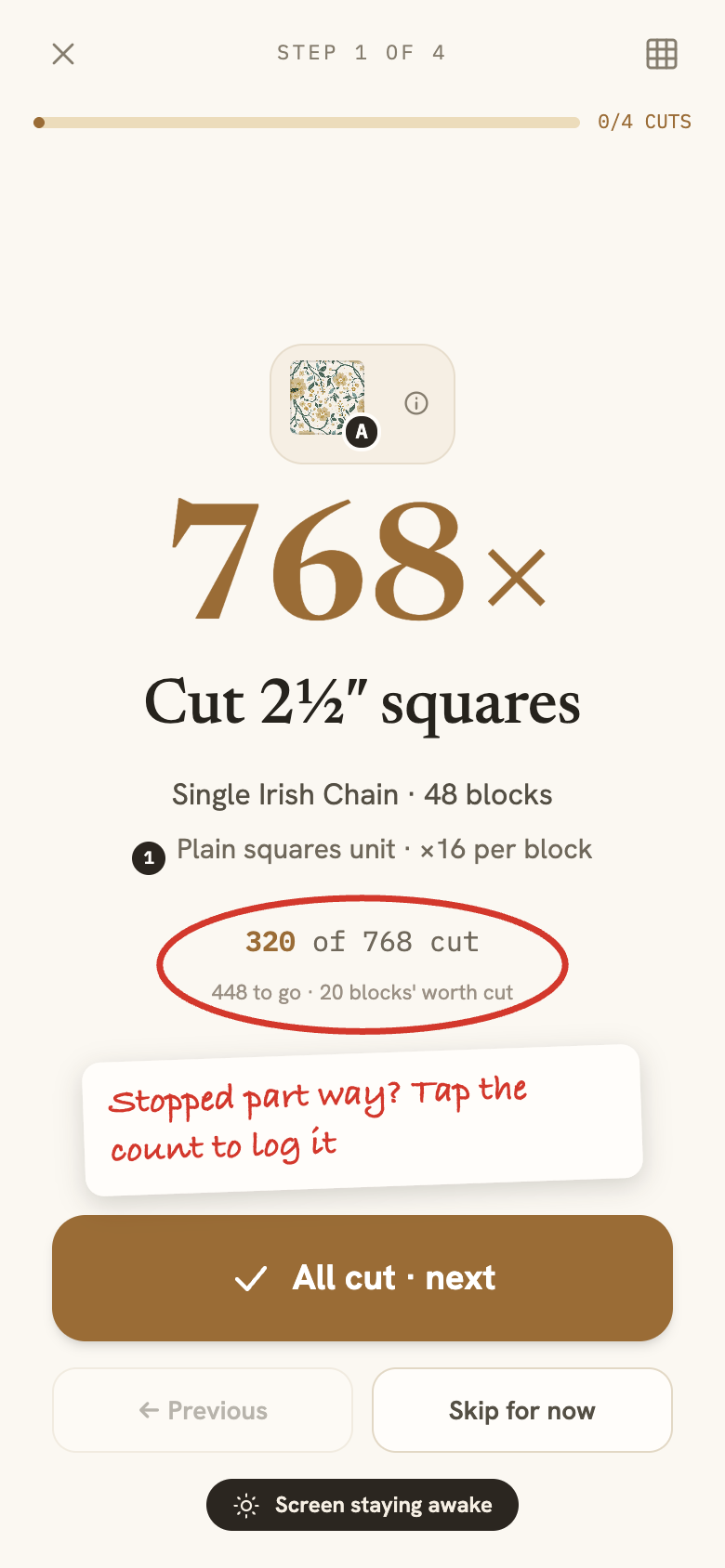
Under each cut, the cutting table says which block the cut is for and how many of that block the quilt needs, such as Single Irish Chain · 48 blocks. The line below names the unit it makes and how many of that unit go in one block, such as Plain squares unit · ×16 per block, and the number in the dark circle is that unit's number. It is the same number as on the block's Block Map: tap the block under Blocks on this quilt to see the map on your phone, or turn to that block's page in your printed pattern, where the block has the same name. The number tells you which pieces the cut is for, never the sewing order.
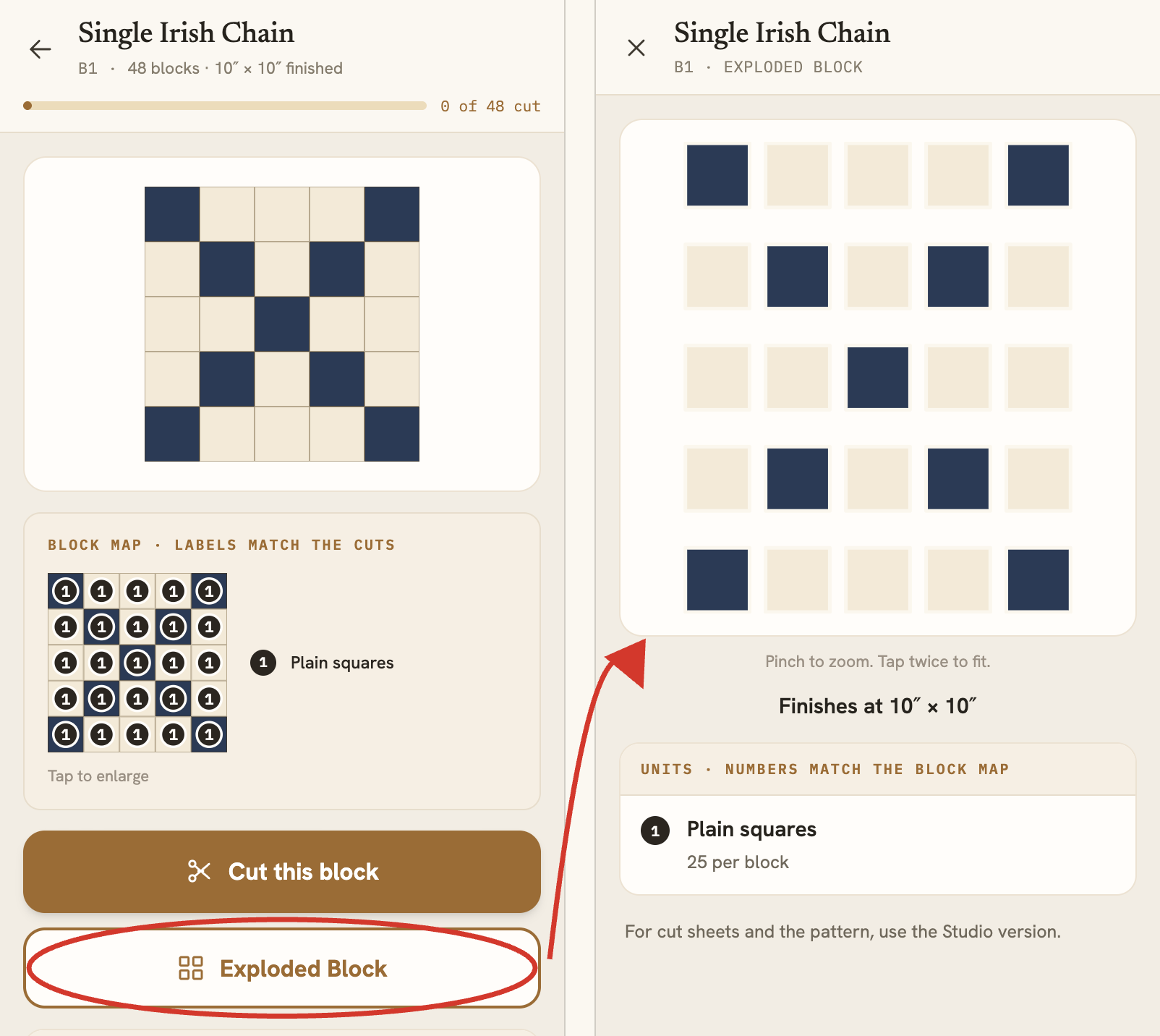
Tip: A number in a dark circle is a unit on the Block Map; a letter on a swatch is a fabric, the same letter as in the Fabric Key.
Shopping: My Shopping List, for the fabric store. Add fabric to it from a quilt's Supply List or your Wish List. Check off each fabric as you buy it; with Maker, StitchBlock then asks whether to add it to your stash. My Supplies, at the top, is for everything else on your list: type needles, basting spray or a rotary blade, tap Add, and check it off when you buy it. The Studio's My Shopping List has the same My Supplies. It all works without internet.
My Stash: My Stash, the Scrap Basket and your Wish List. Fabric Library finds any fabric or collection. Star a fabric for your Wish List, or mark what you own: one fabric, some of a collection, or the whole collection. Recording how much you have, and your precuts, is part of Maker. Colorway Creator is here too.
Try a fabric
Try a fabric shows a new fabric on your quilt, even one you photograph at the store. Tap a fabric, then tap the quilt to apply it. The pill works the way it does in the Studio: This block paints just where you tap, and Matching blocks paints every matching block. Beside the picture, Design shows your quilt as it is and Coloring shows it as line art to color in from a blank start, and anything you leave uncolored keeps the quilt's own fabric. On a quilt of blocks, tap a block and it opens big enough to paint: tap the block to apply your fabric, then Back to the quilt. Borders and binding paint right where you tap them.
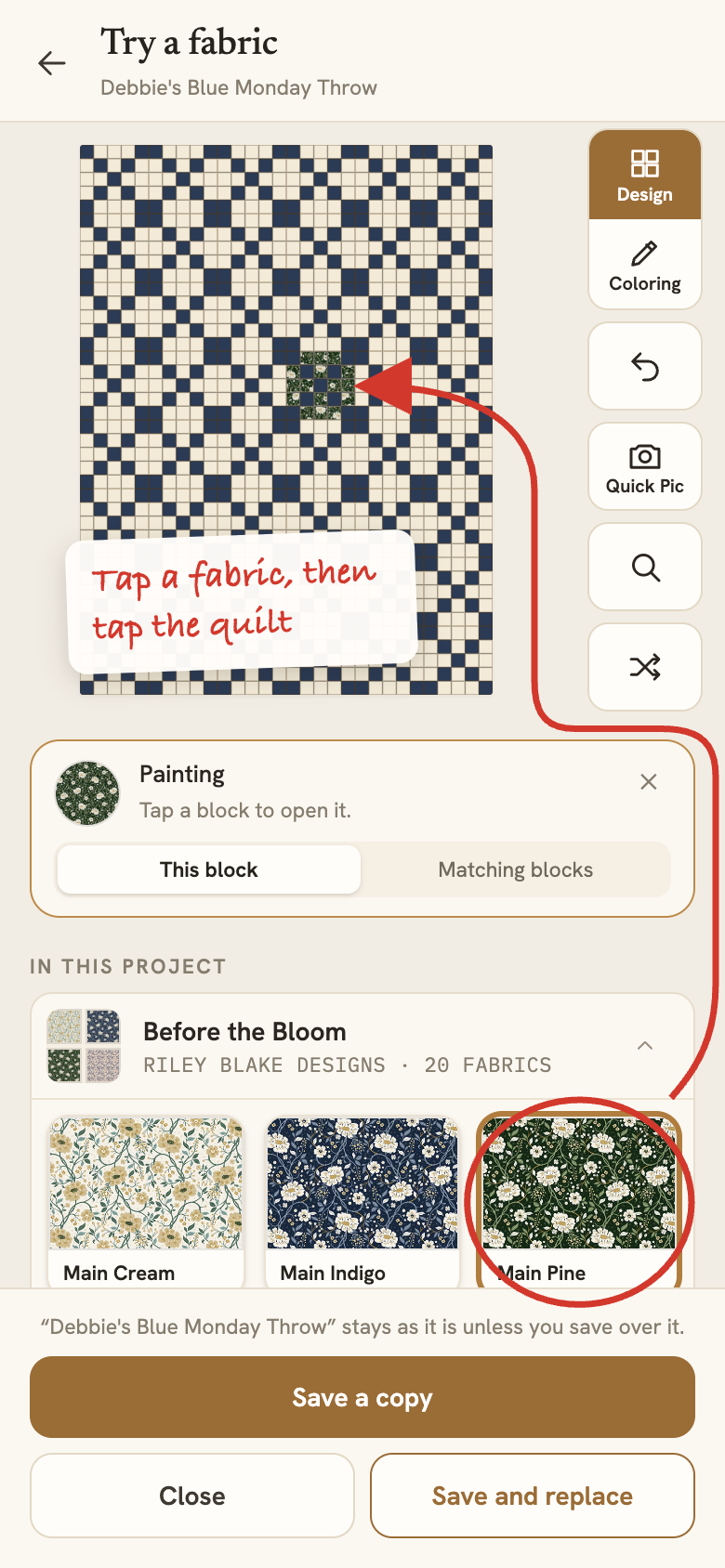
Beside the picture: Design and Coloring, Undo, Quick Pic (two quick shots of a bolt and its label, straight into your hand), a search of the Fabric Library, and on the quilt view Scatter, which deals the fabrics you pick across the quilt; Try another deals them again. Undo takes back your last tap, as many times as you like, and Close leaves your quilt as it was.
In that search, a tap on a fabric brings it into your project, and a second tap takes it back off. A fabric that was in the project before you started asks first, and one that's on the quilt reads On quilt and stays until the paint comes off.
A Quick Pic is for trying a fabric on and remembering it. Once you tap it onto the quilt, the bar asks Keep this quick pic? Love it keeps both photos on your Wish List, under Quick Pics. Nope throws them away and takes that fabric back off the quilt.
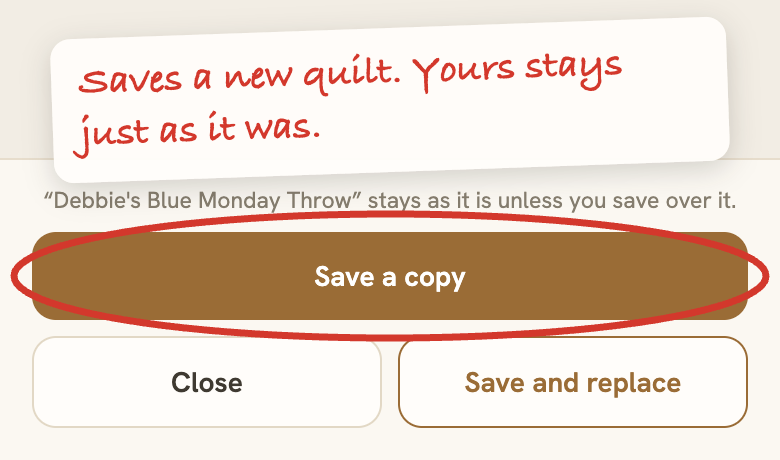
Nothing changes your quilt until you choose. Save a copy saves the try-on as a new quilt, with v2 at the end of its name, and opens it; your quilt stays just as it was. Save and replace changes the quilt itself, with Undo for a few seconds after. Close puts the try-on away without saving.
A Quick Pic never saves onto a quilt: saving takes it back off and keeps the rest of your painting. If you close with a Quick Pic you have not kept, StitchBlock asks Keep the photo? Keep puts it on your Wish List, and Throw away forgets it.
Photograph your own fabric
Tap the camera button. The best place for the photo is your cutting mat: lay the fabric flat with some mat showing all around it, hold the phone straight above it, and use good lighting.
StitchBlock looks for the fabric's corners; drag a dot if one is off, and if there are no dots, tap the four corners. Then say what it is:
A precut, such as a 5″ square or a fat quarter: it sizes itself.
A piece you cut yourself: choose Custom size. When StitchBlock can read the mat's lines around it, it fills in the size for you to check; if the size stays empty, type it.
Yardage: it can size itself from the mat too, when enough mat shows around it, and the next step shows the print at that size against a ruler so you can check it. With no mat, lay a ruler or a bank card on the fabric and trace a known length.
Scraps: choose their shape and size and tap their color. They go to the Scrap Basket, part of Maker.
The full walk-through is Add your own fabric from a photo.
What stays in the Studio
Designing happens in the Studio, on a bigger screen: the worktable, the block tools, borders, embroidery and quilting, the AI design assists, the Binder, and printing templates. If you ever need it, Open the full Studio anyway works on a phone. It's cramped, and Settings → Phone layout switches it back.
You can't design with precuts on your phone. You can record the precuts you own and count their prints, but searching the Fabric Library finds fabrics and collections, not packs, and My Stash has no Add to project for a pack. To paint from a pack, add it to your quilt in the Studio; see Bring a precut pack into your project. A quilt designed with a pack in the Studio still cuts from it on your phone: the Supply List and the Cutting tab follow the pack. Fat quarters or yardage you record print by print are different: those prints come up in Try a fabric like any other fabric.
Free and Maker on the phone
Free: your quilts and their preview, Try a fabric, the shopping list, the Fabric Library and your Wish List, marking what you own, and photographing your fabric.
Maker adds the Cutting tab (the cut list, the cutting table and the full list; free shows a rough total), the Supply List and the WIP page, how much to buy in Try a fabric, the pattern pack, and recording how much of each fabric you have, your precuts and the Scrap Basket.
No internet?
Once you've opened StitchBlock with a connection, the Studio keeps working without one. Your quilts are kept on your computer, so you can keep designing. On your phone, the quilt you opened there, its cut list and cutting table, and your shopping list keep working too. Before you go, check that your initials are in the top corner, because signing in needs the internet. Searching for new fabric, printing the pattern and saving to your account wait for a connection, and your changes save on their own once you're back online. There's more in installing StitchBlock and using it offline.