Why is my quilt 61½″ instead of 60″?
Size presets are targets. The app fits the block size to your target, and sizes land on the ¼″ grid.
StitchBlock Block Sets and Sizing: Every Layout, Custom Sets & Four-Poster Beds Watch on YouTube, bigger and with chapters
The size you pick is a target. When you pick 60″, or a bed that works out to 90″ × 95″, the app fits the block size to that target. Block sizes are on the ¼″ grid so they are easy to cut, and the quilt can land near the round number instead of on it. 61½″ is not an error. It is the nearest size your blocks can cut.
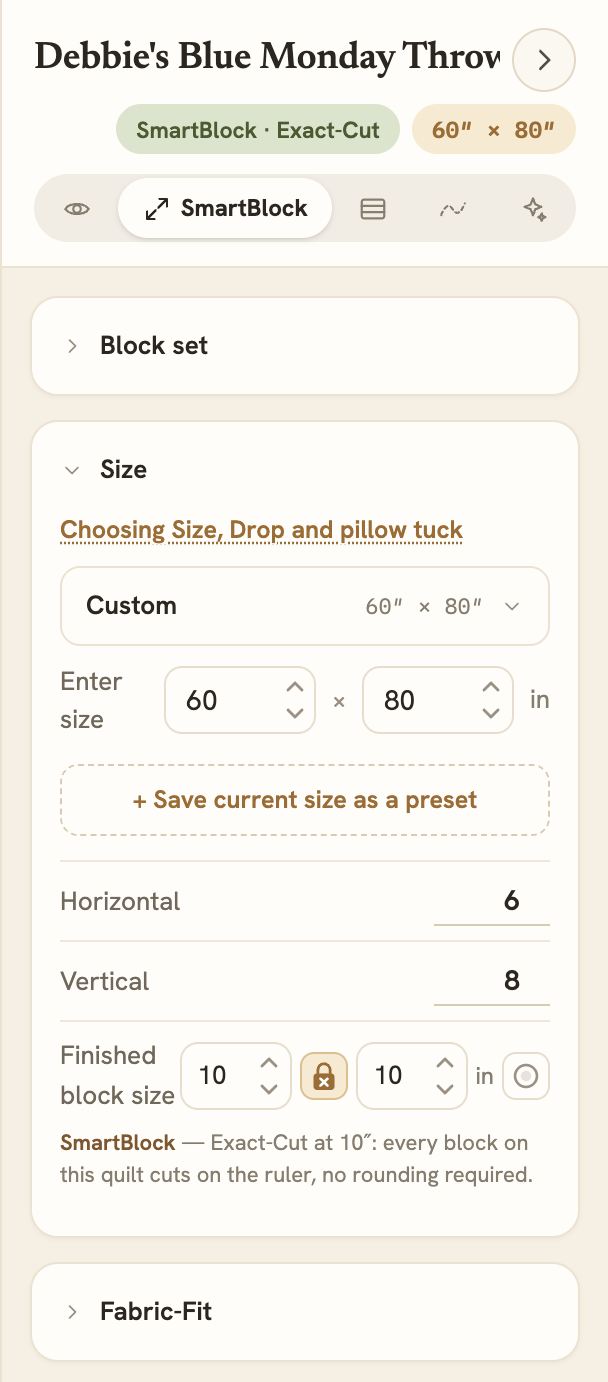
The size pill under the design name shows the quilt’s actual size. Its color shows how close that is to the size you picked: soft green within 4″, soft yellow from 4″, amber at 6″ or more. Each side is judged alone, never added up. The colors are covered in What are the pill colors and warnings telling me?
Blocks follow the same rule. A block with five pieces across at 12″ would need 2.4″ pieces, and no ruler has that mark. So its cuts round to the nearest ⅛″ and the block finishes about ⅛″ off its label. The pattern prints the real numbers: the SmartBlock note on the block’s cutting page, the check sizes, and the quilt-top size all give what the cuts actually sew to.
Two tools help when the exact number matters.
Block size and the target
With a size picked, the block size is set to keep the quilt at the target. Type a different block size whenever you like. The rows refit to keep the quilt at the size you picked, so a Twin stays a Twin with 12″ blocks or 6″ ones. The size pill shows where it landed. A size you type into Enter size is fitted the same way.
Once you change the rows yourself, they stay yours. The next block size keeps your rows, and the quilt grows or shrinks with the block. To have the rows fitted again, pick the size again, or on a bed tap Fit the quilt to the bed.
To keep a block you've chosen, pin it. The pin beside the block size lights by itself when you type a block size. While it's lit, the quilt grows and shrinks by whole rows of that block. The size arrows step a row at a time, and a typed size lands on the nearest whole row.
Tap the pin off and a typed or picked size chooses the block again. A precut pack keeps the pin on, because the block is cut for the pack. A Single Block quilt has no pin and no rows.
The coping-border fix, for a one-block quilt
When one block is the whole quilt, no resize reaches a clean number. A Lone Star wall hanging is the classic case. Its card on the Binder’s SmartBlock Review tab offers the fix quilters have long used, in one tap: Add a coping border.
The strips are cut a little generous on purpose, in plain ruler widths. The pattern prints the finishing step that makes the size exact: trim the coping evenly to bring the top to exactly the printed size. Take it back out (or Undo) removes it. While it’s on it is an ordinary border, so paint it or restyle it like any other.
A quilt of many copies of one block doesn’t need that border. Every block rounds alike, the seams nest, and the top finishes slightly off its label. When a clean number matters, tap one of the Exact-Cut sizes on the Size card. When different blocks round differently, as in a sampler, the fix is coping on each block. See Frame a block with coping strips.
If the size you’ve landed on is the one you want, save it with a name of your own. With Custom picked in the Size dropdown, tap + Save current size as a preset. On a bed, tap + Save as my size.