Print your pattern at 100%
The print pickers, which partial prints carry page numbers, and the 1″ calibration square.
StitchBlock Pattern and Cut Sheets: read every page, print at 100%, and cut one block at a time Watch on YouTube, bigger and with chapters
Three habits keep a printed pattern true to size.
Always print at 100% — actual size. Never “fit to page”: it silently shrinks templates.
Measure the 1″ calibration square. It prints on the sheets — check it with a ruler before cutting anything. If it isn’t exactly 1″, fix the print scale and print again.
Use the print pickers for partial prints. You can print just a selection. Blocks you pick from the Pattern come out as fresh, unnumbered sheets, so a reprint of one block never carries page numbers that contradict the full pattern. The Pattern’s other pages, such as Supplies, keep their page numbers. A Block Cut Sheet numbers its own pages.
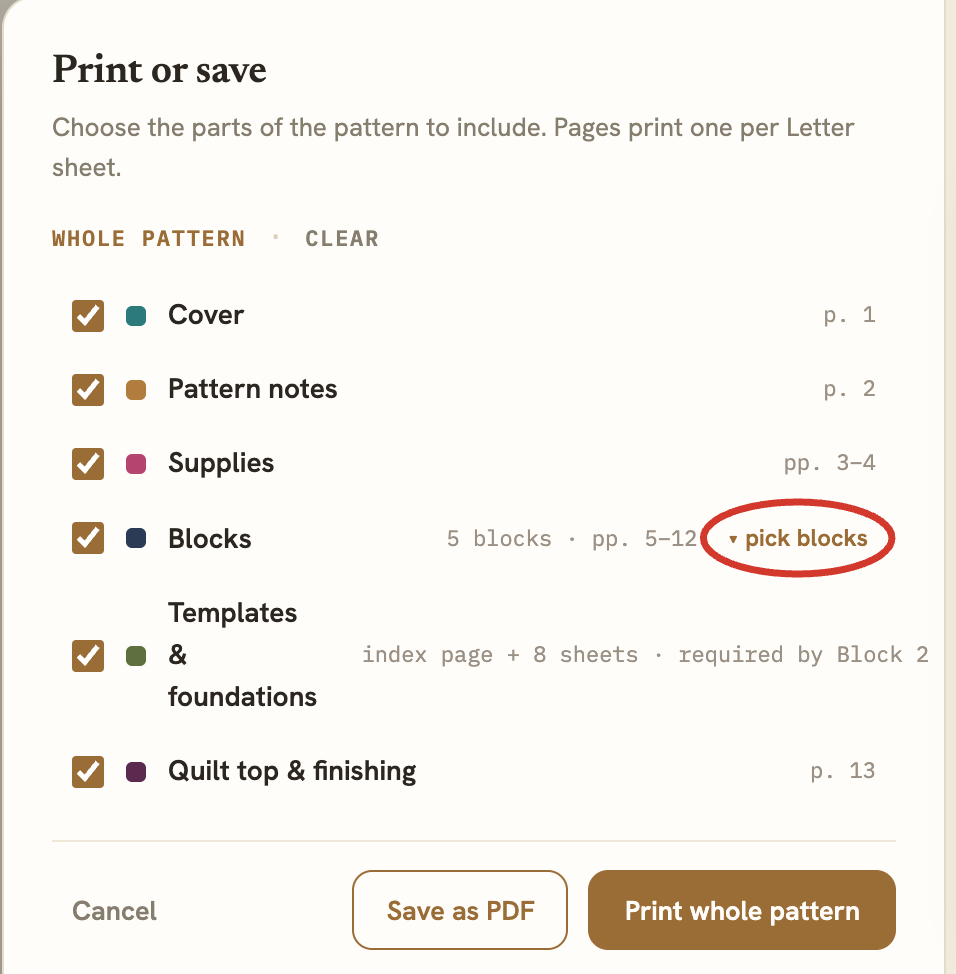
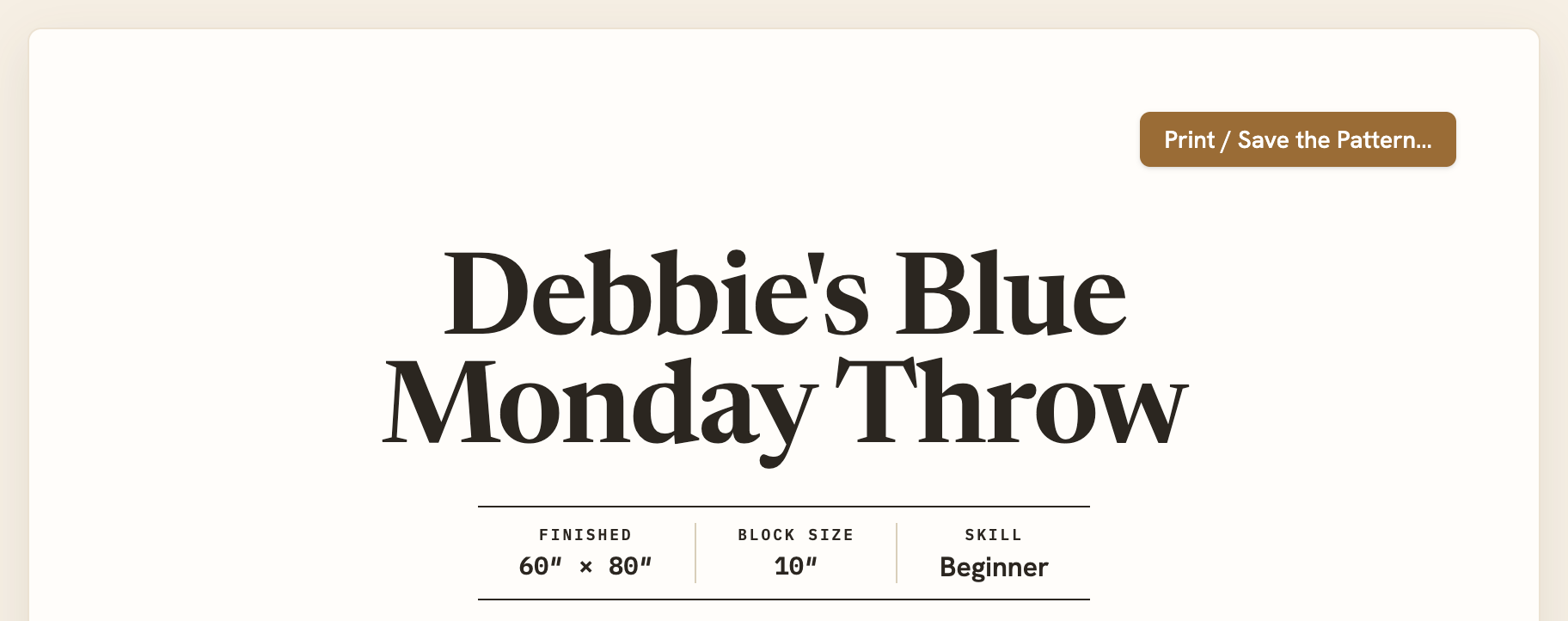
Most Binder documents print from the ochre “Print / Save the …” button at the top right. On the Cut Sheet, a tapped block prints from “Print / Save the block…” and the pieces around the blocks from the print box under them. Foundation Paper Piecing prints from each block’s “Print FPP sheets”, and Templates from each block’s “Print / Save…”.