The Inspiration tab: Show Me, Picture It, Inspire Me
The Inspector’s Inspiration tab: see your quilt in a room, turn a photo into a quilt of squares and triangles in your project’s fabrics, or let the app compose a quilt from the library.
The Inspiration tab is the last tab in the Inspector. It holds three sections, and a quilter reads them as watch, make, invent. Only Show Me, Draw it and Enhance with AI use AI credits. Draw it and Enhance with AI say how many on the button. Show Me says how many in its Quality list.
Show Me
See your quilt on a bed, in a room, or in your own photo. Drop a photo of your room, or pick one of six scenes: On a bed, Over a couch, Wall hanging, Prairie fence, Farmhouse porch or Live oak picnic. The app makes a photo-real preview of your quilt in it, in your fabrics. This one uses AI credits. Tap Generate preview, choose a Quality, and tap Generate photo. The Quality list shows the credits for each choice: Draft is 4, Standard is 5 and High-res is 10.
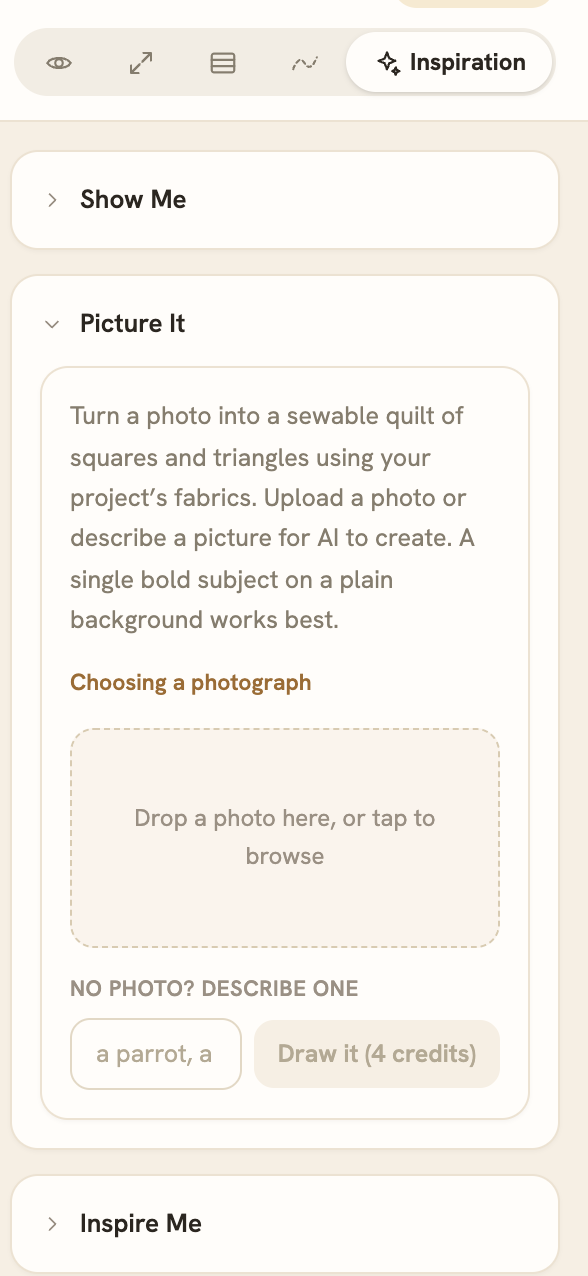
Picture It
Turn a photo into a quilt of squares and triangles. Drop a photo and tap Make the quilt. No photo? Describe one: a parrot, a yellow labrador, the Teton mountains. Draw it asks the AI for a simple flat picture of it, for 4 credits, and the picture lands in the photo slot ready to make. Which pictures work is its own page: Choosing a photograph.
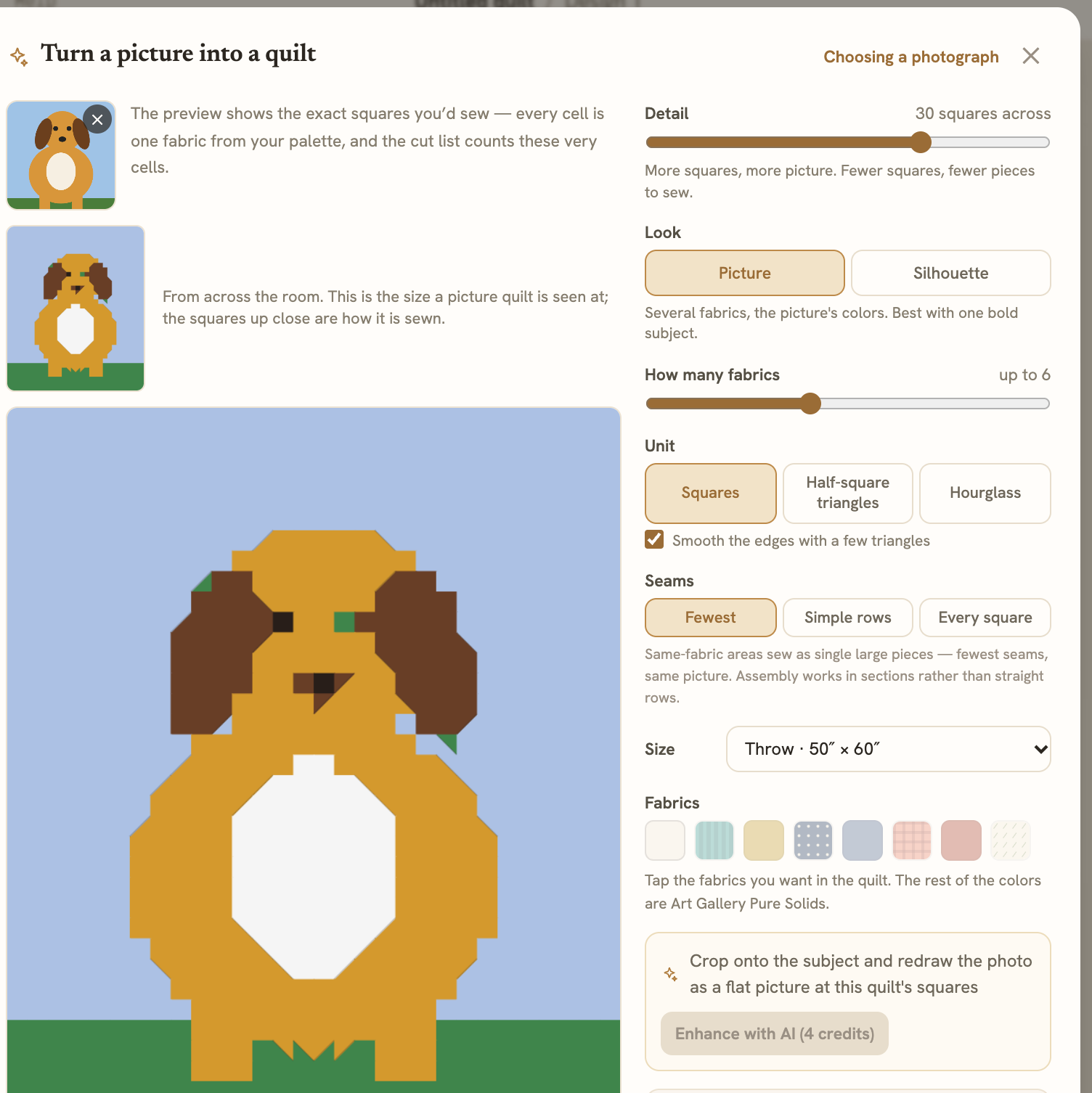
The big preview shows the exact pieces you would sew, each in its real fabric: a print draws as its own picture at its true repeat, a solid as its color. The small picture above it shows the quilt from across the room, which is the size a picture quilt is seen at. The counts under the preview are the real counts; the cut list counts these very cells.
The choices
Detail is how many squares across. More squares, more picture; fewer squares, fewer pieces to sew. Look is Picture or Silhouette: Picture uses several fabrics and the photo’s colors; Silhouette uses two, the subject as one solid shape on a plain ground, which reads from any distance.
Unit is what each cell is sewn as: Squares, Half-square triangles or Hourglass. Squares is the classic pixel quilt, with one checkbox that smooths the edges with a few triangle pairs. The two triangle units give the same picture a patchwork texture. Under them a second checkbox, on to start, sews the one-color areas as strips and keeps the triangles for the picture’s edges and details; turn it off and every cell is the unit, triangles of one fabric where the picture is one color.
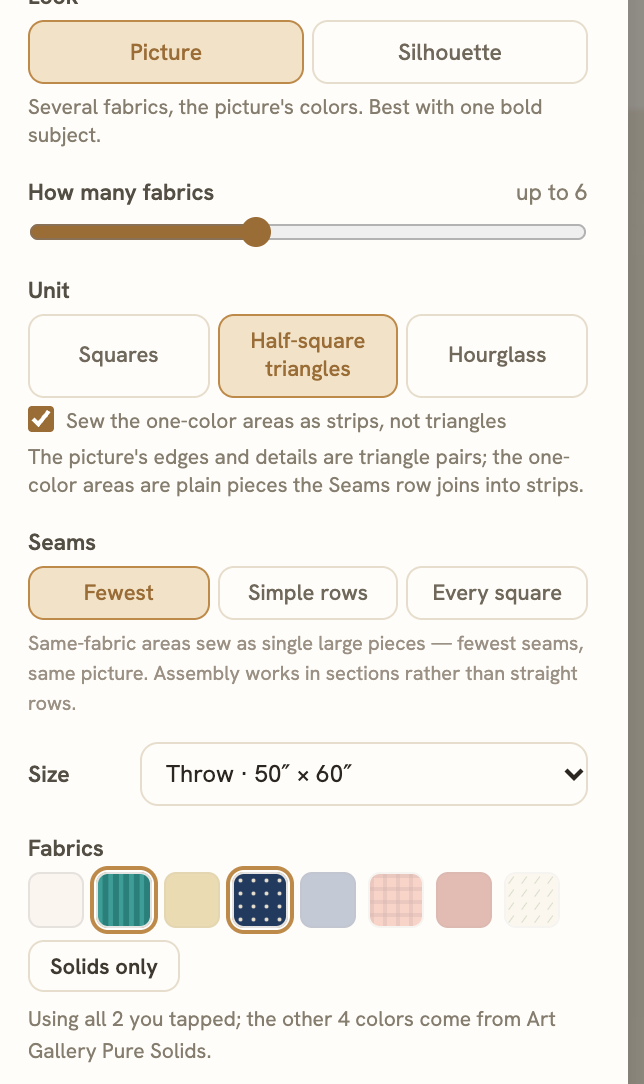
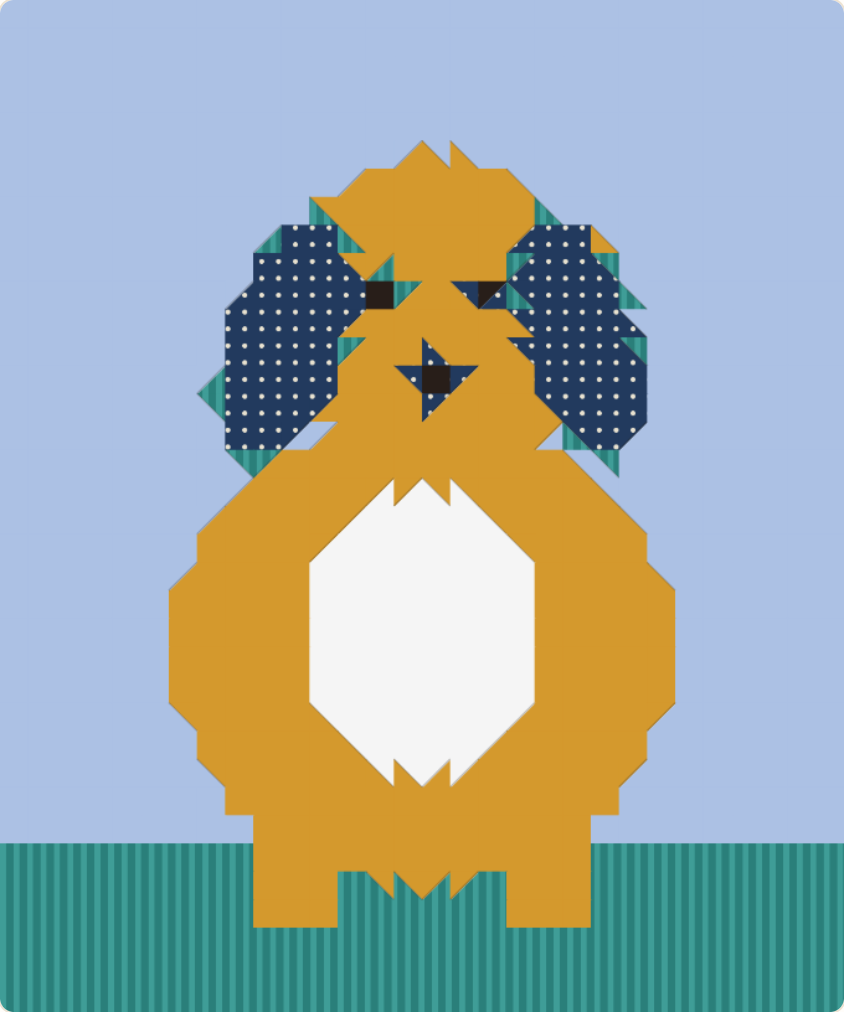
Fabrics start as a colorway of Art Gallery Pure Solids, one for each of the picture’s colors, so the quilt always reads and every color is a fabric you can buy. Under it sit the fabrics in your project as swatches, all off. Tap the ones you want in the quilt: each replaces the solid nearest it in lightness, and the colors you did not cover stay solids, so two pieces of fabric work as well as twenty. Tap them all and the app uses the ones that fit best, up to the How many fabrics count; the line under the swatches says how many it is using, and Solids only clears every tap in one go. A fabric with no color on record, such as one added to your stash without a picture, cannot be matched, and the line says so. Panels, wide backs and cheater prints stay out of the swatches, as they do for Scatter: they are used whole, not cut into squares. With more than a dozen fabrics the row shows the chosen ones and a Choose fabrics button that opens the list grouped by collection, where a tap on a collection’s name turns the whole line on or off. The design is ordinary once added, so any fabric can be swapped for another on the Worktable later.
Seams is how the pieces are joined: Fewest merges every run of one fabric into the biggest piece it can, Simple rows keeps strip-by-strip rows, Every square keeps each cell its own piece. The picture is the same in all three. Size is the quilt’s finished size.
Enhance with AI redraws the picture at this quilt’s own squares, for 4 credits: a photo is cropped onto its subject and flattened so it reads; a drawn picture gains detail. The preview then bakes the enhanced picture, and Use the original picture puts the first one back; your fabric choices stay either way. The quilt itself is always built by the app.
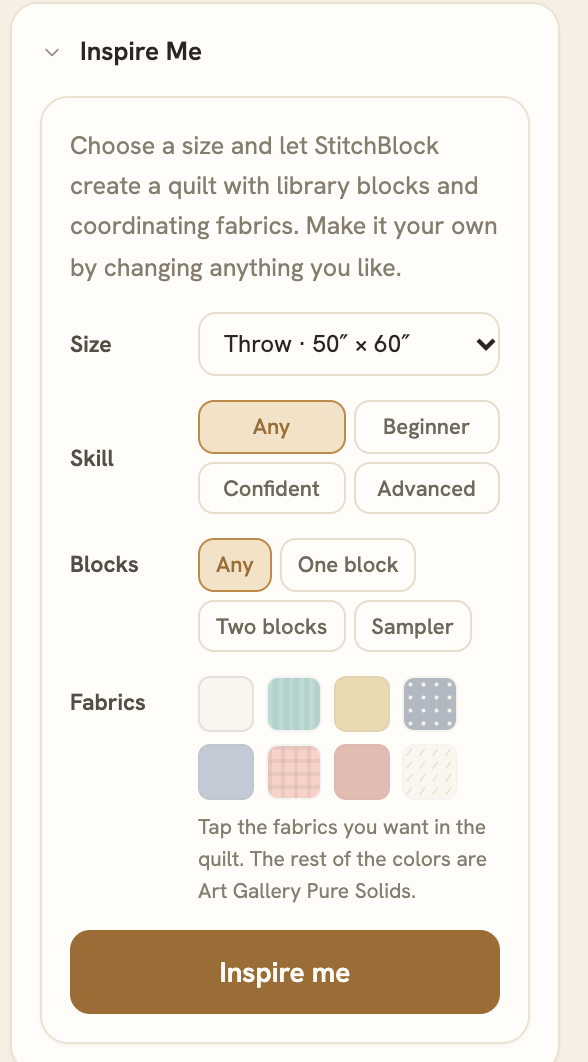
Inspire Me
Pick a size and the app composes a real, editable quilt from library blocks: a setting and a coordinated palette. Blocks is how many different blocks the quilt uses: One block (one block in a straight set, sashed, on point, a value gradient, a medallion or a scatter), Two blocks (the two alternate), Sampler (each block used once), or Any. Picture blocks, the alphabet and Plain Square are never dealt as a block. The block size is one every cut lands on the ruler at, never smaller than 8″ on a throw or a bed quilt, and the quilt’s size gives a little to fit it, so a throw may finish at 48″ × 63″ instead of 50″ × 60″. The colors start as Art Gallery Pure Solids. Under them sit the fabrics in your project as swatches, all off: tap the ones you want and each replaces the solid nearest it. No AI and no credits: it is a randomizer over known good quilt layouts, so Another take rerolls the blocks and New colors rerolls the palette. The result is an ordinary design. Edit blocks, fabrics or size any time, and Undo works.
Colors from a photo
That door lives in the Colorway Creator. Open it from the Fabric Library and tap From a photo: the photo’s six strongest colors join the colorway, each named for its job. See the Colorway Creator.